


.png)


Power BI Embedded lets you embed Power BI visuals, reports and dashboards directly into your applications and websites. But with multiple embedding approaches and licensing models, choosing the right path can be confusing. This guide breaks down everything you need to know to make the right decision for your use case.
What is Power BI Embedded?
Power BI Embedded is Microsoft's solution for integrating Power BI analytics, visuals and Power BI content into custom applications like web apps, websites or internal applications such as SharePoint, Teams, and Dynamics. There are two main embedding approaches... User Owns Data, where each viewer has their own Power BI license and signs in with their Microsoft account. Also, we have App Owns Data, where the application itself holds the Power BI license through a capacity subscription and viewers don't need Power BI licenses. Don't worry if you haven't heard of these terms, this was a super summary, we'll be exploring them in detail below.
In short, rather than users always opening reports in the Power BI Service (app.powerbi.com), you surface them inside your own applications, websites or internal portals, usually through the Power BI JavaScript SDK and in simpler public or organisation scenarios via an iframe embed code, dependent on various factors. This can create a seamless experience where users interact with Power BI visualisations, even without ever knowing they're using Power BI. The analytics simply feel like a native part of your application.
The Two Main Embedded Analytics Approaches
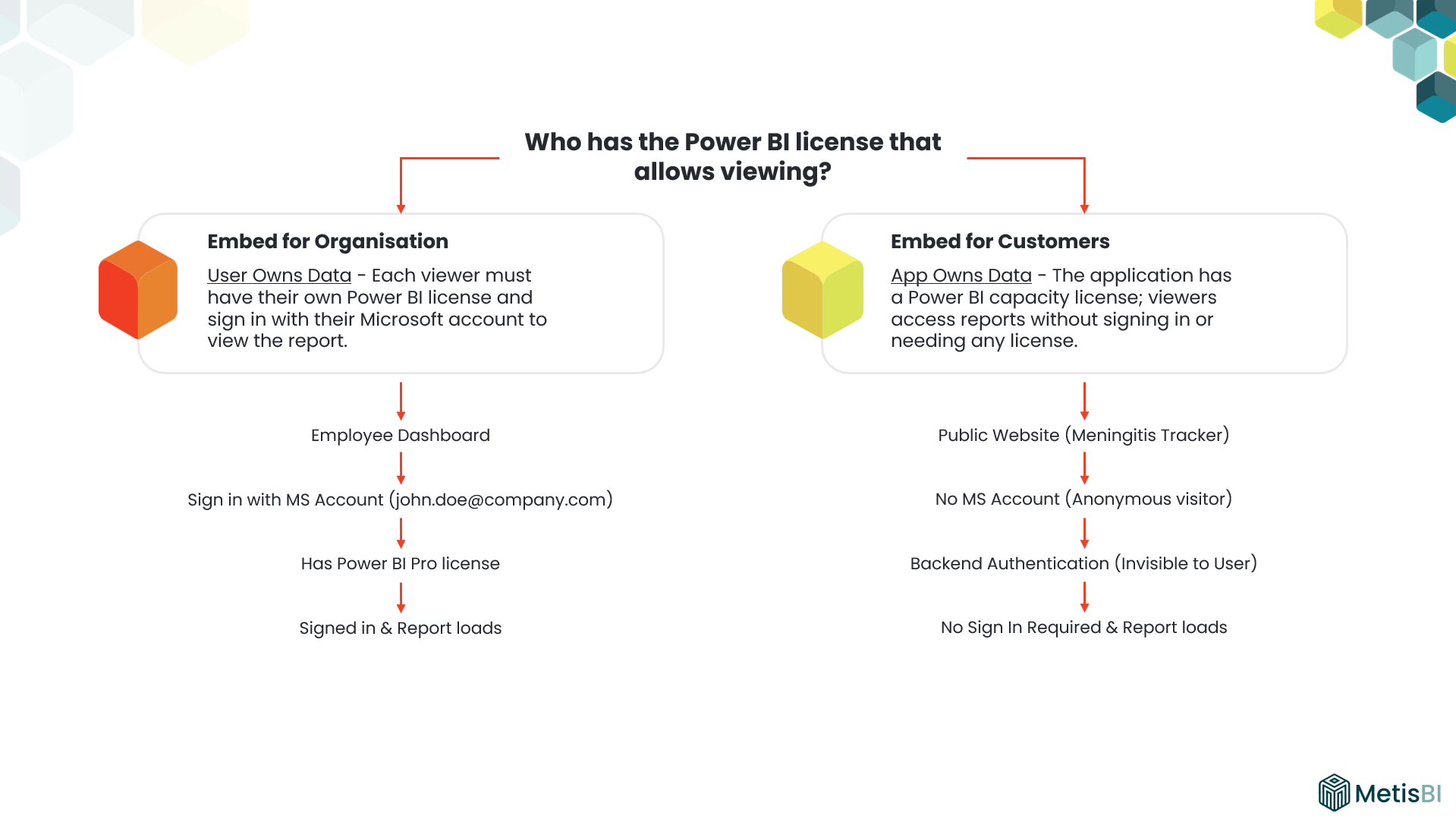
Power BI offers two fundamentally different embedding models, each designed for different scenarios. The fundamental difference comes down to one question: Who has the Power BI license that allows viewing? Understanding which one you need is the first critical decision, and it's all about authentication.
User Owns Data (Embed for Organisation)
Think of this as the "internal employee" model. Each viewer must have their own Power BI license (or within a F64+ capacity) and sign in with their Microsoft account to view the report.
Here's a typical scenario... Your company builds an employee dashboard for internal staff. Each employee signs in with their corporate Microsoft 365 account (like john.doe@company.com), has a Power BI Pro license and the report loads. Because they're authenticated employees with Power BI licenses, they can view, interact with and even edit reports based on their permissions.
Key characteristics:
- Aimed at internal users within your organisation.
- Every viewer needs their own Power BI Pro, PPU, or access through a Fabric capacity (F64+).
- Login required using Microsoft Entra ID (formerly Azure AD).
- Cost scales with number of users.
- Power BI branding stays visible.
- Simpler implementation.
- Best for internal employee solutions.
Some implementation methods:
- SharePoint Online
- Microsoft Teams
- Secure embed iFrames
App Owns Data (Embed for Customers)
This is the "customer-facing application" model. The application itself holds the Power BI license through a capacity subscription. Viewers don't need Power BI licenses and never sign in to Power BI... though they may need to authenticate to your application itself.
There are two common scenarios here. The first being anonymous public access. I have come across this scenario numerous times. So, a government health agency publishes a public website showing global disease and vaccine statistics. Anonymous visitors (no sign-in required) browse the site, click on interactive maps and charts, and display visualisations. Behind the scenes, a Service Principal generates embed tokens, but this is completely invisible to users. The second is an authenticated customer portal. A real example from the past was a UK legal firm built a client portal where clients sign in using the firm's own authentication system - they built this within it. Each client sees only their own case data through Row-Level Security and other security mechanisms. Behind the scenes, the portal again uses a Service Principal to generate embed tokens based on the authenticated user's identity, but clients never interact with Power BI directly.
Key characteristics:
- Aimed at external users or public audiences.
- Report must be hosted on Fabric F-SKU or Azure A-SKU capacity.
- No Power BI viewer licenses needed.
- Viewers don't sign in to Power BI (but may authenticate to your application).
- Full branding control (can remove Power BI logos entirely).
- More complex configuration (requires developer).
- Best for customer-facing applications or public websites.
Implementation: Requires a custom web application using Service Principal authentication or other identity/access mechanism. This goes beyond Power BI, as depending how complex, you'll need a web developer to implement the token generation, embedding logic properly and all other elements on front-end of your application.
There's Also a Third Option: Publish to Web
For simple public scenarios with non-sensitive data, Publish to Web offers a minimal-cost alternative.
Key characteristics:
- Only need Power BI Pro license.
- No login required.
- Accessible on public internet.
- Power BI branding always visible.
- Minimal security and weak auditing.
- Can only embed full report pages, not individual visuals.
Use this when you're building simple public trackers where full-page layout is acceptable and the data is non-sensitive. Side note, if you are using Publish to Web as an internal way of sharing... please, stop!
Power BI Embedded License Requirements
For User Owns Data (Embed for Organisation)
Option 1: Individual licenses
- Each viewer needs a Power BI Pro or PPU license
- Cost scales with number of users
- Works for any capacity size
Option 2: Fabric F64 or above
- Users can view without individual licenses
- Below F64, users still need Pro or PPU licenses
- Fixed monthly cost regardless of user count
Important note: If you want to embed in Teams, SharePoint or PowerPoint, you must use F-SKUs, this doesn't work with A-SKU. Also, a side note that F-SKUs came with MS Fabric and replaced the legacy Power BI Premium SKUS (P-SKU) we previously had.
For App Owns Data (Embed for Customers)
You need these two elements:
- Capacity subscription (choose one):
- Fabric F-SKU (F2, F4, F8, etc.) - billed monthly or yearly
- Azure A-SKU (A1, A2, A3, etc.) - billed hourly
- Power BI Pro license:
- Required for publishing and developing reports
- Only one needed per organisation for admin purposes
The key point is that no viewer licenses are needed. The capacity license covers all viewing.
F-SKU vs A-SKU: Which Capacity Should You Choose?
Both F-SKU (Fabric) and A-SKU (Azure) provide capacity for App Owns Data embedded content, but they have important differences that matter in real-world scenarios.
F-SKU (Fabric Capacity)
Pricing:
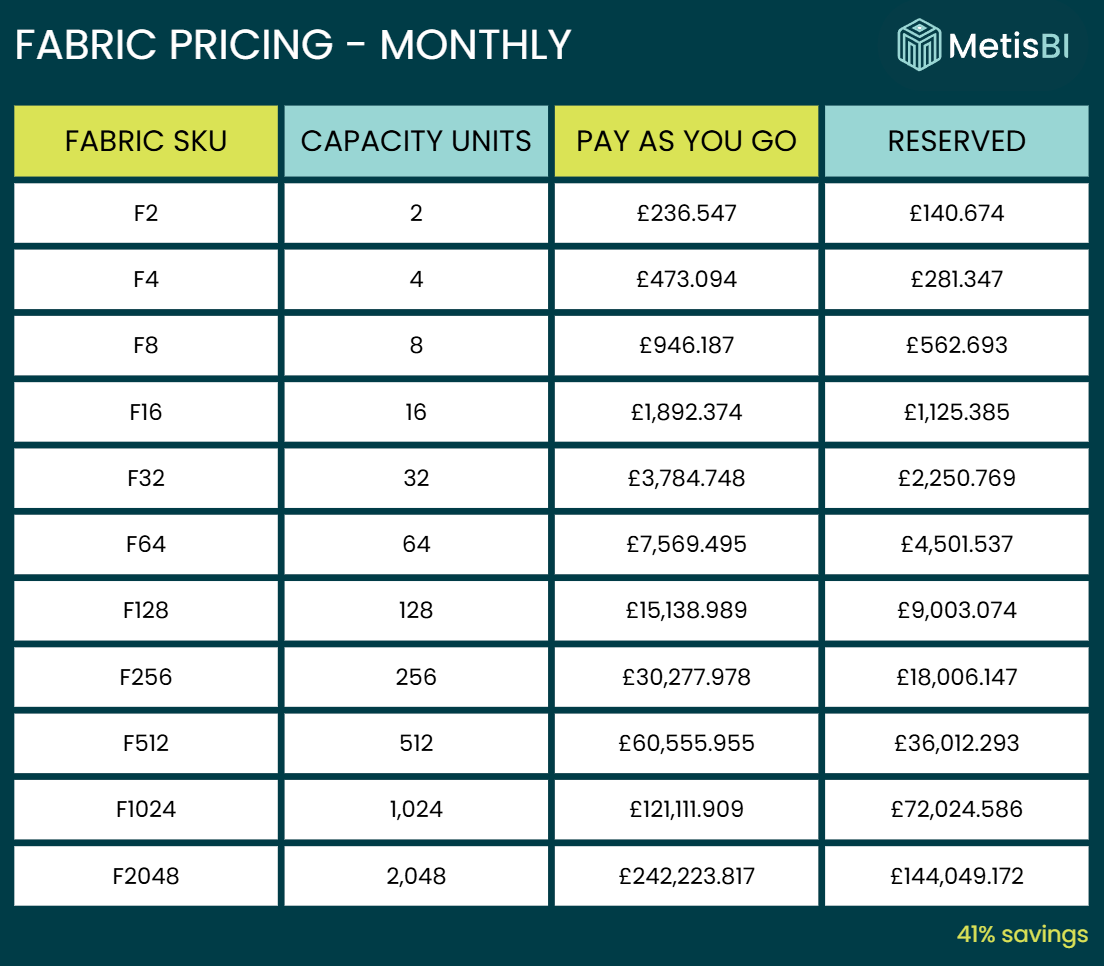
Below is the price of F-SKUs for region UK South in GBP (£).
Key features:
Comprehensive Platform Access: F-SKUs provide access to the entire Microsoft Fabric suite, not just Power BI embedding. This includes Data Engineering, Data Science, Data Warehouse, Real-Time Analytics and Data Factory capabilities in addition to Power BI.
License-Free Viewing (F64+ Only): F64 and above enables free read-only access for all report consumers in User Owns Data scenarios. This applies to internal users accessing reports in the Power BI Service (app.powerbi.com) and to reports embedded internally where users authenticate through Microsoft Entra ID (previously Azure AD). Below F64, viewers still require individual Power BI Pro or PPU licenses for User Owns Data scenarios.
Flexible Embedding Options: For App Owns Data (Embed for Customers), any F-SKU works, including F2, F4, F8, and all tiers. You don't need F64+ for customer-facing embedding. The F64 threshold only matters for User Owns Data scenarios where you want license-free internal viewing. When using lower-tier F-SKUs for embedding, monitor capacity resources through the Fabric Capacity Metrics app to ensure adequate performance.
Performance Flexibility: F-SKUs include bursting and smoothing mechanisms. This allows capacity to temporarily exceed baseline limits during traffic spikes and averages utilisation over time windows. This provides flexibility when workloads briefly exceed provisioned capacity.
Purchasing Options: F-SKUs can be purchased on a pay-as-you-go (PAYG) basis or with reserved capacity pricing. Reserved capacity offers monthly or annual commitment options with approximately 40% cost savings compared to PAYG rates.
A-SKU (Azure Capacity)
Pricing:
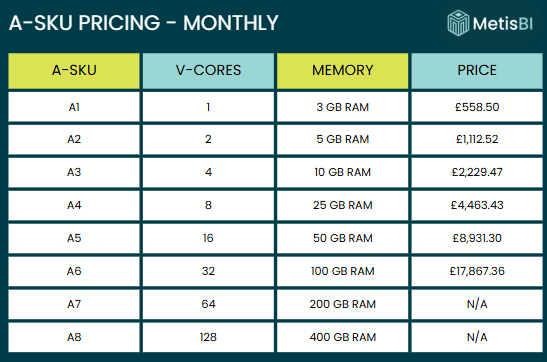
Below is the price of A-SKUs for region UK South in GBP (£).
Key features:
Embedding-Only Solution: A-SKUs are designed exclusively for Power BI embedding scenarios. They should be viewed as a specialised embedding-only option rather than a full Power BI platform solution.
No Power BI Service Access: A-SKUs do not provide access to the Power BI Service (app.powerbi.com) for internal report consumption. Users cannot access reports through the standard Power BI interface with A-SKU capacity.
Limited Integration Support: A-SKUs do not enable embedding into Microsoft Teams, SharePoint or other Microsoft 365 applications.
Flexible Billing Model: A-SKUs are billed hourly and can be paused when not in use. This pause/resume capability allows you to save on costs if you only need capacity running 8 hours per day instead of 24/7.
Development and Testing: A-SKUs are particularly well-suited for testing and development purposes where 24/7 uptime isn't required. The ability to pause capacity during off-hours makes them cost-effective for non-production environments.
How to Right-Size Your Capacity
Here's the truth... there's no perfect science to choosing the right SKU. I've always told clients the same thing—do as much planning as you can upfront to understand your resource requirements, but accept that you'll need to monitor and adjust as you go. It's an iterative process, not a one-time decision.
That said, if you're going down the F-SKU path, Microsoft's Fabric SKU Estimator tool can give you a "starting point" as you can see below:

For the above, I selected "Power BI Embedded" option only, entered 5GB of compressed data, 13 tables, one daily refresh and roughly 20 average daily embedded sessions. It recommended F2 as sufficient. If you want to try this out, click the MS Fabric Capacity Estimator.
Validation process:
- Start with Calculator Recommendation: In our case, F2. Deploy it as pay-as-you-go initially rather than committing to reserved pricing. This gives you flexibility to scale up or down without being locked in.
- Run load tests with Power BI Capacity Load Assessment Tool: Simulate realistic usage patterns. This is where you'll discover if the recommendation holds up under actual conditions, not just theoretical calculations.
- Monitor with Fabric Capacity Metrics App: Watch for sustained high CPU, memory pressure or throttling... these are your signals that you might need more capacity. Occasional spikes are fine, but if you're consistently hitting limits, it's time to scale.
The critical point here is continuous monitoring. The Fabric Capacity Metrics app shows you real-time CPU, memory and throttling. Don't over-provision based on worst-case scenarios or guesses about future growth. Start small, monitor actual usage and scale based on data. Also, once you find sweet spot, if you are on an F-SKU try move to a reserved plan to take advantages of cost savings.
Wrapping It All Up
Power BI embedding doesn't have to be complicated. It really comes down to one question: who authenticates? Internal employees with Microsoft accounts... User Owns Data. Customer-facing or public access... App Owns Data. Public data, no security needed... Publish to Web. Start small, monitor with the Fabric Capacity Metrics app and scale based on actual usage. Need help deciding which path is right for your situation or sizing your capacity? We have walked dozens of organisations through this, from charities to financial services to retail. Feel free to reach out.
For a comprehensive overview of all Power BI licensing options, check out our full guide: Power BI & MS Fabric Licensing Guide: Choosing the Best License for Your Needs


%20(8).png)
.avif)
.avif)