


.png)


A lot of Power BI professionals and experts still hear the word API and immediately worry on how to use it to authenticate and ingest data in a pure Power BI solution. A lot of the struggle is not only about handling the pagination, throttling, retry logic, rate limits, refresh windows or how ugly the JSON output is. Very often, I find many struggle to grasp how different API's work, how to use each and how to authenticate against them. So, that is what this blog is about.
Before anyone says it, yes... in many real scenarios, I would not choose to handle complex API authentication directly inside Power BI. There are better options outside Power BI which I will briefly highlight near the end of the blog. So, for all my data engineers, yes I know you know, but this is more for the pure PBI people and analysts who may not feel as comfortable with API's.
If you work with Power BI and are tasked with ingesting data through an API, I want you to be able to look at the vendor documentation and feel more comfortable in understanding the type of authentication it uses. Having this info can help you understand how easy it will be to try in Power BI Desktop, how the Power BI Service refresh is likely to behave, whether secrets will end up exposed in M (Advanced Editor in Power Query) and whether you should stop early and move the whole thing somewhere else.
So, not here to pretend Power BI should become your API integration layer, but more to help you recognise early what you are actually dealing with. Also, one thing you should keep in mind, not all APIs are the same. Even if the technical documentation suggests a simple API Key pattern, a bearer token, no real refresh constraints or a clean JSON output, a lot still depends on the vendor and whether they maintain the API and it's documentation. So, test it properly before you assume it will behave the way you expect.
In this blog, the the focus will be four common authentication patterns, and showing what they mean from a Power BI point of view. One quick thing to reiterate again before we get into it... this blog is focused on authentication. APIs bring plenty of other challenges with them too such as pagination, retry logic, nested JSON, refresh limits, rate limits and vendor-specific quirks to name a few. All of that matters, but it is beyond scope here.
What Authentication Means in This Context
In plain English, authentication is the API asking: Why should I let you in? The important bit is that different APIs expect different answers, and that answer is dictated by the vendor. For this blog, I am focusing on four common patterns:
- API Key: simple key passed with the request.
- Bearer Token: static bearer token, usually in the header.
- OAuth 2.0 Authorization Code: user-approved once, then token exchange and refresh logic.
- OAuth 2.0 Client Credentials: app authenticates as itself, no user consent step.
To make this more practical, I have paired each one with a real API example that aligns to that pattern:
- Pokémon TCG API for API Key
- HubSpot for Bearer Token
- QuickBooks for OAuth 2.0 Authorization Code
- PayPal Sandbox for OAuth 2.0 Client Credentials
Pattern 1: API Key
Example: Pokémon TCG API (Developer Portal | Pokémon TCG API)
This is the simplest pattern as the vendor gives you an API key and expects you to send it with the request. So, first step is to register, verify, and then you receive an API Key, that is it.

In the Pokémon TCG example, the API key is passed manually in the x-api-key header before Power BI even shows its credential prompt. That is why this is a useful teaching example: Power BI’s credential screen and the API’s real authentication method are not always the same thing. Here, the API is authenticated by the header, which is why selecting Anonymous in Power BI can still be correct.

In this case, the API key is already being passed in the request, so in Power BI Desktop the correct credential choice is still Anonymous. Power BI itself is not authenticating, the header is.

Once connected, Power Query handled the JSON well and expanded it cleanly into genuinely useful data, card names, HP, types, set information and pricing-related fields. That makes it a strong first example because you go from key, to API call, to loaded data quickly.
One subtle but important note... in the Pokémon TCG API, the key is optional and mainly affects rate limits. That lowers the stakes, but it does not invalidate the example. The header-based API key pattern still stands and the implementation lesson is still useful.
The catch is not whether it works, it does work. The catch is where the API key lives. If the key is injected directly into Web.Contents, the credential lives in the query logic and is visible to anyone who opens the Advanced Editor, as you can see below:

In the Pokémon example the risk is low because the data is public and the key mainly affects rate limits rather than access to sensitive information.
With that said, low risk does not mean good practice. Before moving on, it is worth addressing a question often asked... is there a way to keep the key out of M code entirely? That becomes far more important once we move from public data into CRM or finance APIs. One useful nuance from this first pattern is Power BI’s native ApiKeyName feature. In theory, this is the cleaner option because instead of hardcoding the actual key in the M code (Advanced Editor), you only provide the key name and Power BI is meant to hold the real value in its credential store.
The problem is that Microsoft designed ApiKeyName for APIs where the key is passed as a URL parameter. The Pokémon API we are using as an example documents its key in a custom X-Api-Key header, so it is not a clean match. We tested that more native route and it became awkward in the Service. Microsoft documents this behaviour in the Power Query Web connector reference.
To isolate whether this was just a vendor API issue, we also tested the OpenWeather API, which is the cleaner Microsoft-style example because its API key sits in the URL rather than in a header. That did not solve it. Following the Microsoft approach, still could not authenticate cleanly in the Power BI Service, the Web API authentication option was not appearing and we did try other APIs also.
To me, that is a limitation in Power BI. In contrast, when the API key was hardcoded directly in the M code, refresh in the Power BI Service worked. So, a lesson from this pattern is not whether the API Key authentication works in Power BI... it does. In our testing, for the APIs we tried, the cleaner native route was not reliable enough in the Service, so the key still ended up living in M if we wanted scheduled refresh to work. ApiKeyName looks like the answer, but in our testing it did not behave cleanly in the Power BI Service. As I mentioned at start of this blog, the focus is pure PBI, but a custom connector, Azure Function or moving ingestion to Fabric or ADF are options for this pattern and other ones we will explore further below. To finish, for a public data API like Pokémon TCG, this is an acceptable trade-off. For anything protecting sensitive data, it is not.
Pattern 2: Bearer Token
Example: HubSpot Private App token
At first glance, this can look similar to Pattern 1 because you are still taking a credential from the vendor and passing it with the request. But there is an important difference. A bearer token usually travels in the Authorization header in this format:
Authorization: Bearer <token>
That is what makes it distinct. It is not just "another API key". The word Bearer effectively means: Whoever holds this token is allowed in.
For this example, I used a HubSpot Private App token. HubSpot issues a static access token that grants scoped access to CRM data. That immediately makes the stakes higher than Pattern 1. We are no longer dealing with public Pokémon or OpenWeather data. We are dealing with real business data and sensitive information.
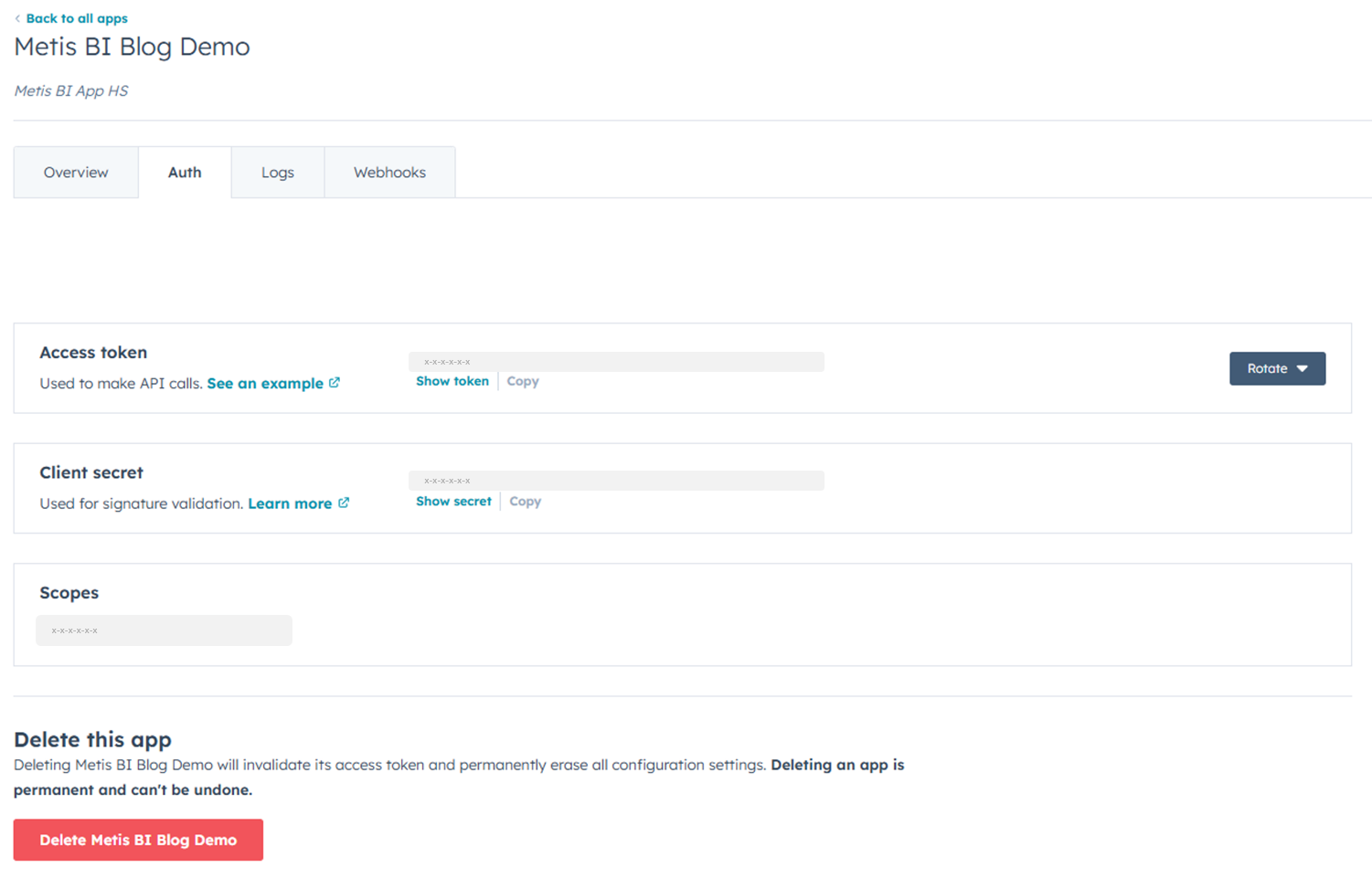
That warning from HubSpot is worth calling out. The vendor itself is effectively telling you the same thing this section is about to prove, this token is sensitive, and it should not be floating around in plain text.
The difference from Pattern 1 is subtle but important. An API key can live wherever the vendor decides, a custom header, a URL parameter, a query string. A bearer token is much more standardised. It always sits in the Authorization header, and always follows the same pattern. So technically it is cleaner. From a security point of view, it is often more serious.
To connect in Power BI Desktop, I used the Web connector, entered the HubSpot contacts endpoint and manually added the Authorization header with Bearer <token>. When prompted for credentials, I again selected Anonymous for the same reason as Pattern 1, Power BI’s own credential layer is not doing the real authentication here. The bearer token in the header is.

Once connected, the data loaded successfully. Contact records came back straight into Power Query... IDs, email addresses, names, created dates. So from a pure "can I make the API call?" point of view, this pattern works quickly and works well. But open the Advanced Editor and the real problem becomes obvious. The bearer token is hardcoded in plain text in the M code.
That means anyone who can open the PBIX can read the token and make authenticated API calls to your HubSpot account, with whatever scopes that token was granted. This is the same implementation flaw as Pattern 1, but now the business consequence is categorically different. With Pokémon, you were exposing a low-stakes key against public data. Here, you are exposing a token that can unlock real CRM data.

Publishing to the Power BI Service introduces another complication. Unlike Pattern 1, which accepted the connection cleanly, the Service failed its credential test with a 400 error when the Authorization header was present. The workaround was to tick Skip test connection in the data source credential settings. With that enabled, refresh worked. But that should tell you something. Yes, the pattern is still doable. No, it is not especially clean.
There is no clean native way to keep the bearer token out of M code while maintaining scheduled refresh in the Service. Using a Power BI parameter instead of hardcoding it directly is sometimes suggested, but the token is still visible to anyone with Desktop access. It solves nothing from a security standpoint. The proper options are the same as Pattern 1: an Azure Function sitting between Power BI and HubSpot, a custom connector with a gateway or moving the ingestion to Fabric or ADF entirely. For this pattern, that conversation matters more than it did with Pokémon TCG, because the credential you are exposing now unlocks real business data.
Pattern 3: OAuth 2.0 - Authorization Code
Example: QuickBooks (Intuit)
This is the first pattern where there is a real flow behind the scenes, not just a static credential you paste into a request. With Patterns 1 and 2, you took a credential from the vendor and passed it with every call. Pattern 3 is different. A user approves access once, the application receives an authorisation code, that code is exchanged for an access token and a refresh token, and the access token is then used as a bearer token in the actual API call. This is not just a harder bearer token... It is a token lifecycle.
The distinction between Pattern 3 and Pattern 4 is worth stating clearly before going further:
- Pattern 3: requires a one-time human authorisation to bootstrap the connection. After that, the process can usually run unattended for a period of time, as long as the refresh token remains valid and the lifecycle is managed properly.
- Pattern 4: requires no human authorisation or consent step at any point. The application authenticates as itself using its own credentials from day one.
-

Before Power BI entered the picture, there was a first-run bootstrap process. The app had to be registered on the Intuit developer portal, redirect URIs and scopes configured, a browser-based login and consent flow completed, the first authorisation code received and exchanged for the first access token and refresh token, and the company realm ID captured. That is worth spelling out because when you look at the M code later, the refresh token did not appear by magic. Every OAuth Auth Code integration has some form of bootstrap step, even if the vendor presents it differently.
In Power BI Desktop, the M code performs two steps during the refresh process. First, it posts to the QuickBooks token endpoint using the refresh token, Client ID and Client Secret to obtain a fresh access token. Second, it uses that access token as a bearer token to call the QuickBooks API. When prompted for credentials in Power BI Desktop, Anonymous is the correct choice, because Power BI's own credential layer is not managing the QuickBooks authentication here. The M code is doing that itself.
For this example, we only brought in two sets of data: customer data and receipts data. That is worth calling out because once the authentication is working, the next challenge is often simply making sure you are hitting the right endpoint and pulling back the right entity. In other words, getting the auth right is one problem. Getting the right data back is another.

But open the Advanced Editor and the same problem from Patterns 1 and 2 is back, only worse. To make this work in Power BI, four credentials end up in the M code or in parameters: Client ID, Client Secret, refresh token, and realm ID. Parameters make the code slightly cleaner to manage, but they do not solve the security problem. Anyone with Desktop access can read all four values. It's also worth mentioning there are ways to mitigate this if going to a more custom solution is not possible now, but these are more short/medium-term, not long-term. Reach out if you want to know more.
Publishing to the Power BI Service introduces further complications. The token endpoint is not a normal data endpoint, it is a POST call that returns a token, not a table. The Service's test connection logic does not handle this shape cleanly, which creates credential validation issues after publish. Skip test connection is again required and even if refresh works, the deeper issue remains: every time the refresh token rotates, the new token needs to be stored somewhere. Plain PBIX has nowhere clean to do that.
So the honest conclusion for Pattern 3 is this. Yes, Power BI Desktop can prove the pattern works technically. But plain PBIX is not a sensible long-term home for this kind of authentication flow. This is the first pattern where the question stops being can I call the API and becomes should the report be responsible for managing client secrets, refresh tokens and token rotation at all. In my view, the answer is no. Once those values are living inside the PBIX, the file is doing a job it should not be doing.
At Metis BI, we have handled these challenges the right way through Microsoft Fabric, using Notebooks to manage the token exchange and API calls, Azure Key Vault to hold secrets securely, non-human identities and then landing the data into a controlled layer before Power BI touches it. That makes the whole setup cleaner, safer and far easier to manage. You can achieve something similar with Azure Functions or ADF too, but the core point is the same: for OAuth flows like QuickBooks, the authentication lifecycle is usually better handled outside Power BI, not buried inside M code.
Pattern 4: OAuth 2.0 Client Credentials
Example: PayPal Sandbox
Pattern 3 required a human to approve access once before anything could run. Pattern 4 removes that step. This is machine-to-machine OAuth. The application proves its own identity using a Client ID and Client Secret, exchanges them directly for a short-lived access token and uses that token to call the API. No browser login. No consent screen. Typically no refresh token to manage either, when the access token expires, the app simply requests a new one using the same client credentials.
That is what makes this pattern conceptually cleaner than Pattern 3. There is no human in the loop at any point in the flow itself.
It is also worth being precise about how this differs from Pattern 2. With HubSpot in our example, the bearer token was effectively static. So, we copied it once and it sat in the M code unchanged. With Client Credentials, the access token is dynamic. It is generated on demand from the Client ID and Client Secret during the refresh process. The thing you are really protecting here is not the access token itself. It is the Client ID and Secret that can keep generating new tokens.
For this example we use PayPal Sandbox. Spotify was the original candidate for this pattern, but changes to its developer access made it less practical for a clean demo, so I switched to PayPal Sandbox instead. PayPal provides a free sandbox, a textbook client credentials flow, well-documented endpoints and payments data that practitioners immediately recognise as business-critical.

Setting up was straightforward. A free PayPal account, a login to the developer portal, and the Default Application with Client ID and Secret was already there. Worth noting... the PayPal dashboard itself displays a warning: store credentials safely and never share client IDs or secrets publicly. The vendor is telling you directly what this section is about to prove.
Before touching Power BI, we confirmed the token exchange in Postman. POST to the PayPal token endpoint with Client ID and Secret as Basic Auth, body containing grant_type=client_credentials and the response came back 200 OK with an access_token, token_type: Bearer, and an expiry of 32,400 seconds. No human login, no redirect. Credentials in, token out.
In Power BI Desktop, the connection follows the same two-step structure we used in Pattern 3, however, without the bootstrap complexity. The M code posts the Client ID and Secret to the PayPal token endpoint to obtain a fresh access token, then uses that token as a bearer token to call the PayPal invoices API. When prompted for credentials, Anonymous is the correct choice for exactly the same reason as every previous pattern. The authentication is handled entirely inside the M code. Power BI's credential layer is not involved.
The sandbox has no invoice records, so what came back was pagination metadata rather than invoice rows. But that is not the point. The authenticated connection worked. The two-step OAuth flow completed entirely within Power Query, and the Applied Steps panel confirmed it: clientId, clientSecret, tokenResponse, accessToken, transactions, all the way to the result.
Open the Advanced Editor and the same problem is back. Client ID and Secret are hardcoded on lines 2 and 3, as you can see below. But this time the exposure is worse than any previous pattern. With a hardcoded bearer token in Pattern 2, someone with access to the PBIX can read that token and use it for as long as it remains valid. With a hardcoded Client ID and Secret, they can use that credential pair to keep generating new access tokens until those credentials are revoked or changed. You are not just exposing a session. You are exposing the keys to the session factory.

Publishing to the Service produced the same result as Pattern 2. In our test, the Service's test connection logic did not handle this shape cleanly, because the token endpoint is a POST-based auth endpoint rather than a normal data endpoint. Skip test connection was needed to get past Service validation and, with that in place, scheduled refresh worked. It is worth stepping back at this point though. In our testing, once M code started handling authentication internally via POST bodies and custom headers, the Service's test connection logic became much more awkward. That was a consistent pattern across the more complex API connections we tried.
There is one broader point this pattern makes that is worth understanding. Power BI does have built-in OAuth-style authentication options, but the generic Web connector is not a dependable generic OAuth 2.0 client for arbitrary third-party APIs. That is the important distinction. In practice, for APIs such as PayPal or QuickBooks, once you try to keep everything inside native PBIX, credentials often end up being handled in M code. If you want proper OAuth handling, you usually move to a custom connector or handle the authentication outside Power BI altogether.
The production options are the same as previous patterns. An Azure Function can sit between Power BI and PayPal, hold the credentials securely, handle the token exchange, and proxy the API call. A custom connector is the cleaner Power BI-native answer, but Service refresh usually means bringing the on-premises data gateway into the picture. Fabric notebooks or ADF move the ingestion upstream entirely, so Power BI connects to a cleaner data layer rather than the API directly. The core point is the same as Pattern 3: for OAuth flows, the authentication lifecycle is usually better handled outside Power BI, not inside M code.
Where Do We Go From Here?
The real value in understanding API authentication patterns in Power BI is not that it helps you force every API through PBIX. It is that it helps you know when not to.
If the authentication pattern is simple, an API key against a public endpoint or a static bearer token for a lower-risk data source, Power BI may be perfectly fine for a proof of concept or even a lightweight production use case. If the pattern is more complex, especially once you are dealing with OAuth flows, token lifecycle management, and unattended refresh, the technical question quickly becomes an architecture question.
This blog deliberately focused on the Power BI side only, Power BI Desktop, Power Query and what happens once you publish to the Power BI Service, not every other option available across Microsoft Fabric, Dataflows, Azure Data Factory, Azure Functions or custom-built integrations.
That is why, for something like QuickBooks, I handle the authentication outside Power BI entirely, using Fabric Notebooks with Azure Key Vault to manage the token exchange securely and landing the data into a controlled layer before Power BI touches it. Where supported, you can also take advantage of non-human identities to make the whole setup cleaner again. It is safer, cleaner, and far easier to manage long term. Power BI then consumes something much simpler, which is usually how it should be.
So no, this blog is not arguing that Power BI should become your API integration layer. It is arguing that if you work in Power BI and you are handed an API to connect to, you should understand the authentication pattern early enough to know what you are actually signing up for.
And if, for practical reasons, credentials do need to live in Power BI for now, there are ways to reduce the risk through stronger governance and the right guardrails, so reach out if that is the situation you are dealing with.
That is the difference between a quick test, a fragile workaround and a design decision you will regret six months later.


.png)
.png)
.png)