


.png)


Power BI Copilot is changing how organisations interact with data. Instead of navigating reports, selecting filters, dragging and dropping, users can ask questions in plain English and get instant insights and results. However, Copilot is only as good as the Power BI semantic model behind it.
So far, I have seen a lot of people trying to take advantage of Copilot without laying the core foundations first. It is the same story as with most tech. Without the right model design, guardrails and governance in place, you will not see the real benefits. If you want to use Copilot effectively, you need to invest in those foundations first to make sure the business is ready.
In fact, many UK businesses enable Copilot and quickly find that answers are unclear, inconsistent or simply wrong. In many cases, the issue is not Copilot. It is the underlying Power BI setup.
This blog explains what Copilot-ready really means, why most Power BI environments are not ready today and some practical steps you should take before rolling Copilot out and promoting it across your organisation. Whether you already use Power BI extensively or are just getting started with AI features, getting the fundamentals right is crucial.
Also, a quick note. I am currently exploring the Model Context Protocol (MCP) in detail, specifically how it may shape the next wave of AI experiences across analytics tools. I want to properly play with it first and do a deep dive, so expect more blogs on this soon.
And if you have read some of my other blogs or seen my posts on AI and Copilot, my view has not changed. AI is coming, and we should not be worried or scared. We should learn it and use it. But we also need to be careful not to confuse the speed of producing things with genuine business value.
Key Takeaways
Power BI Copilot relies heavily on your semantic model. If the model is poorly structured, overly technical or inconsistently defined, Copilot can surface those issues immediately.
To be Copilot-ready, your Power BI environment should have:
- A clean star schema semantic model
- Clear, business friendly naming
- AI metadata such as descriptions, synonyms, instructions and verified answers
- Governance, controlled rollout and end user enablement
For the above, we will explore each in more detail as we go through this blog.
What Does "Copilot Ready" Mean in Power BI?
Being Copilot-ready means your Power BI semantic model is designed so that an AI can interpret it in the same way your business users do. Copilot does not understand your organisation automatically. It relies on:
- The structure of your data model
- The names you give tables, columns and measures
- Which fields are visible or hidden
- The descriptions and metadata you provide
- Existing security and governance rules
- How you support the end users in using it
A Copilot-ready model combines strong data modelling with AI-specific guidance. When a user asks a question, Copilot should know which data to use, how to calculate it and how to explain it using business language. When done right, Copilot becomes a genuine asset that can deliver results aligned to how your business actually operates.
It is worth calling out that "Copilot" is a broad term across the Microsoft ecosystem, and even within Power BI it shows up in different ways depending on the persona and the job to be done. If you want a breakdown of Copilot by persona, read our blog: Exploring Copilot for the Power BI Personas. For the rest of this blog, we are focusing on Copilot chat over the semantic model, and how to prep the model so answers are reliable.
Why Most Power BI Setups Are Not Copilot-Ready
Most Power BI environments were not designed with AI in mind. They evolved over time. New tables were added as requirements grew. Naming conventions drifted. Technical fields were left visible because they did not cause immediate problems. Half the time it starts with an excel extract from SharePoint, then another one, then another and the model grows around it.
And to be completely honest, many Power BI models are not even aligned to the standard modelling best practices they should have followed in the first place. Weak structure, no star schema, messy "Spaghetti" style relationships, inconsistent definitions, use of implicit measures and "everything visible" might still allow a report to function, but it creates confusion. Copilot just surfaces that confusion faster, and at scale. The complexity of poorly designed models means Copilot has far less signal to work with.
Copilot exposes these weaknesses instantly. This article explains how to configure your Power BI environment so Copilot use cases actually deliver value.
How to Enable Power BI Copilot Correctly
Before preparing your models, Copilot must be enabled at platform level. This is not just a toggle, it is a rollout decision that touches your workflow, who has permission, and your compliance requirements. Before you implement anything widely, ensure Copilot is enabled and governed properly.
Key checks include:
- Copilot availability depends on region and Fabric capacity, so confirm support for your tenant. More details here.
- Microsoft Fabric tenant-level settings must be enabled in the Admin Portal. More details here.
- Copilot does not work with trial capacities license. More details here.
Also, something I was really excited about when it was announced at FabCon 2025. Microsoft confirmed that Copilot and AI features are included with all paid Microsoft Fabric SKUs. Yes, that includes F2 and above, which makes it far more accessible for organisations that simply could not back the budget for F64 and above. If you are still on Power BI Premium capacity you should also have access to Copilot as its the equivalent to an F64, however, check whether an upgrade to Fabric makes sense for your specific requirements. For a deep dive into Power BI and MS Fabric licensing, read our blog: Navigating Power BI & MS Fabric Licensing.
Do not enable Copilot for everyone immediately. Once the region, capacity and tenant settings are confirmed, start with a small pilot group, apply governance and monitoring, and only then expand access gradually.
Common Reasons Power BI Copilot Fails
Poor Data Model Design
This is the big one. If Copilot is giving you poor answers, it is rarely “Copilot being bad”. It is the model.
I have been preaching this from day one in Power BI and beyond, and I will take it with me to my last day in Power BI. Star schemas all the way. If you do not know what a star schema is, see our guide here: Data Modelling in Power BI. If your semantic model is not clean and unambiguous, Copilot has less signal to ground on, so it can map a question to the wrong measures or relationship paths, which is when you get unclear, inconsistent or flat out wrong results.
The usual culprits I see:
- Many-to-many relationships that introduce ambiguity and when you ask why they exist, no one really knows.
- Unnecessary bi-directional filtering that creates multiple paths and confusion, usually added "because it made the report work" and then left there.
- Too many tables where facts and dimensions are blurred, with "random" tables thrown in over time and later forgotten.
- Tables built to make the model work, not to make it readable, meaning they are not true facts or dimensions, just structures created to get something over the line.
So, simply put, good modelling is not optional for Copilot. It is a must. Without this solid ground, Copilot does not help you work faster or improve efficiency it just helps you hit the same model problems quicker.

Too Many Fields Visible
This one always bugs me, and I see it all the time. I open a Power BI semantic model and it is just… everything. Primary keys, foreign keys, audit columns, staging columns and even columns no end user should ever need to touch.
It overwhelms users, and it confuses Copilot. Copilot is trying to interpret your model based on what you expose. If you expose noise, you get noisy answers.
It overwhelms users, and it confuses Copilot. Copilot is trying to interpret your model based on what you expose. If you expose noise, you get noisy answers.
The rule is simple, only keep visible what a business user should actually ask about and interact with. Everything else should be hidden and grouped properly.
Also, if there are fields you still need for relationships or visuals, but you do not want Copilot to consider them, use the Prep data for AI experience in Power BI Desktop to create a simplified AI data schema and deselect those fields from what Copilot analyses. So, once you select "Prep data for AI" you will see the below:
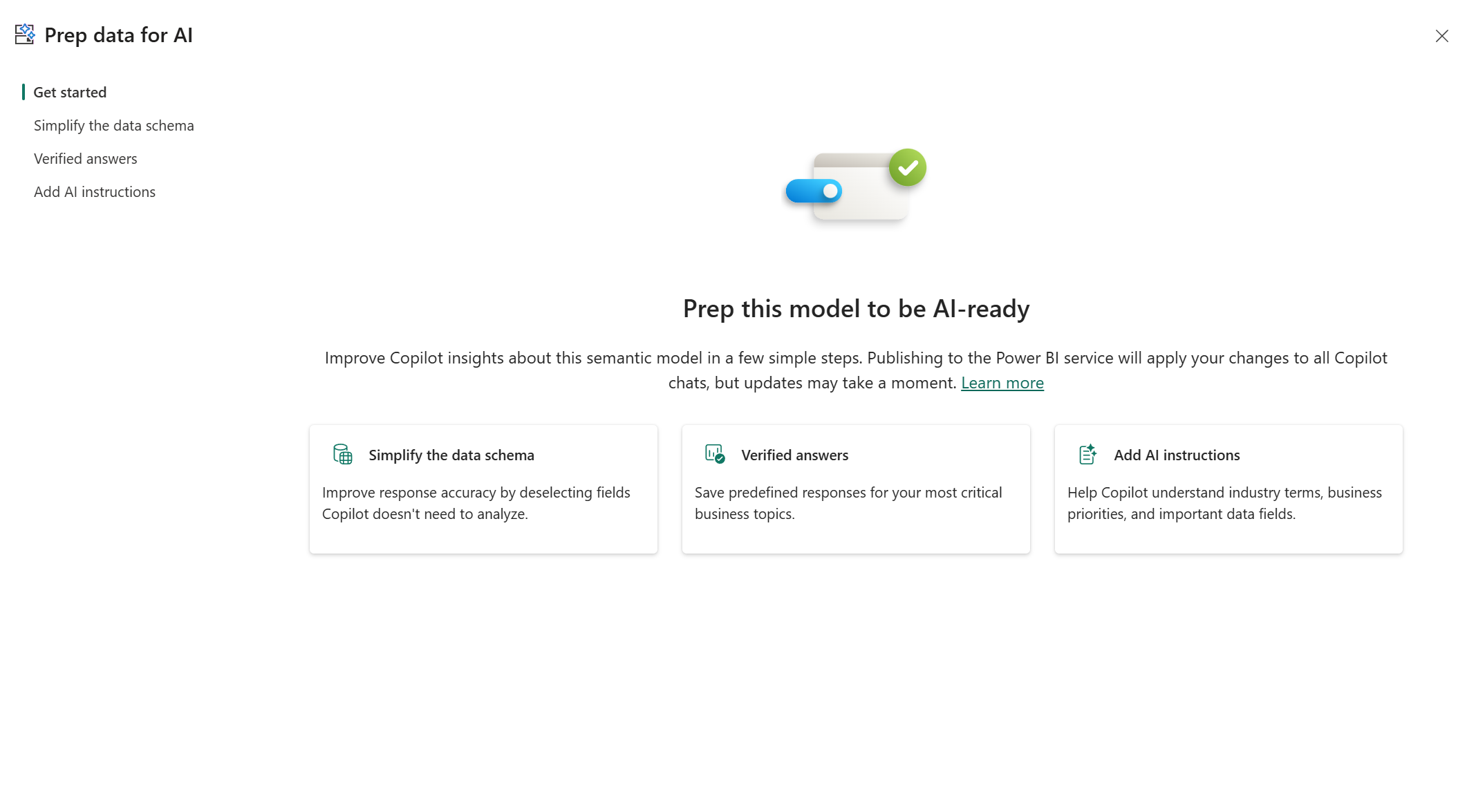
From here, select on "Simplify the data schema" option and you will be presented with the below. Notice, you can see tables that have all field selected or some fields selected:
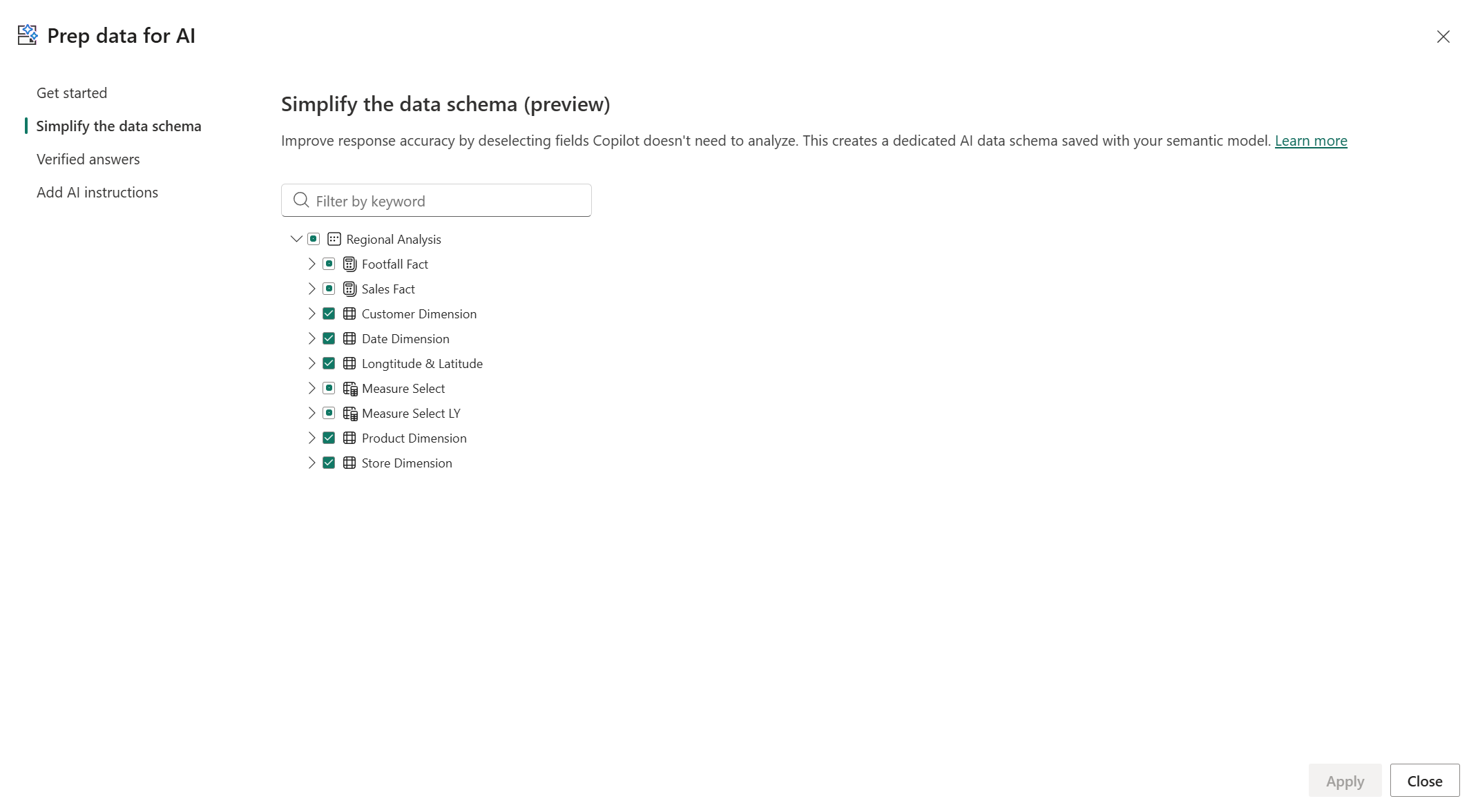
For Microsoft’s full write-up on the AI data schema and the considerations/limitations, see: Prepare your data for AI schemas.
Poor Naming Conventions in Power BI
This one is important, and in all honesty, this should have been the case long before Copilot existed. I have always told clients and anyone I work with, your semantic model must align to business terminology. That is how self-service works better. And now with using Copilot in Power BI, it matters even more.
Copilot is heavily influenced by the names it can see. If your tables, columns and measures are labelled in a way that does not match how the business speaks, Copilot has far less signal to map a question to the right fields. That is when it starts picking the wrong thing or giving vague answers.
So, avoid technical naming, random abbreviations and messy formatting. No underscores everywhere. No “DimCustomer” and “FactSales” exposed to end users. The business does not speak like that, and they should not have to.
Does the organisation call it “Sales”, “Revenue”, or “Sales Revenue”? Go with the most common term used by the business. The goal is that the semantic model reads like a shared business glossary, not a developer’s data model document.
Missing Synonyms
Even if you nail the naming convention, people will still ask questions in their own language. Different teams use different words for the same thing. Finance might say “revenue”. Retail might say “sales”. Someone else might say “sales revenue”. Someone else will use an internal acronym that only exists in the business. And by the way, this is a real scenario I encountered. You'd think this would be the easiest definition to have nailed, but not at all.
One important change to call out. Synonyms historically lived inside the Power BI Q&A setup experience, and Microsoft has now confirmed that Q&A (including Q&A setup tooling like synonyms) is retiring by the end of December 2026. If you are still using the old Q&A setup tooling, Microsoft’s direction is clear, start familiarising yourself with Prep data for AI and move your efforts there. For more details in this check out this link here.
With that said, the underlying problem does not go away. Users will still say “Revenue” when the model says “Sales Revenue”. From what I could see we have two options. First, we can use the Synonyms box in the Properties panel (Model view) to add the alternative terms against the tables, columns and measures Copilot needs to understand. Also, we can use AI instructions within the "Prep data for AI" panel, however we will come to that further below.
Synonyms give Copilot more chances to understand what the user actually meant and land on the right field or measure. The result is simple. More accurate answers, fewer follow-up questions, and far less “Copilot picked the wrong thing”. Also, the synonyms box in in the properties panel does not seem to be going anywhere with the depreciation of Q&A, so from what I can see it should be used. Here are some examples where synonyms can really help:
- “Revenue” = “Sales Revenue” = “Sales”
- “Region” = “Area” = “Business Family”
- “Customers” = “Clients” = “Accounts”
- “Margin” = “Gross Margin” = “GP”
- “Refunds” = “Returns” = “Credits”
- “Active Customers” = “Live Customers” = “Trading Customers”
Also, so you can see it in action, here is a simple example. In this business, the Sales measure is known internally as “Mets” (and it is not related to the word Sales in any way, it is just what the business calls it). Made up this word for this context that way Copilot doesn't just make an assumption that was right. So, when we ask Copilot “What is the value of my total Mets?”, it cannot map that term to any measure, so it flags that it does not know what we mean and instead offers suggestions like “What is my total Sales?” or “What is my total Units?”. While one of those suggestions is correct, if the entire organisation calls Sales “Mets”, we do not want Copilot relying on suggestions or assumptions. We want it to just know the translation. So, we add “Mets” as a synonym against the Sales measure in the Model view Properties panel, ask the same question again, and notice that Copilot now returns the correct Sales value straight away.

No AI Instructions
We briefly touched on this in the Synonyms section above, because you can use AI instructions to handle terminology too. But this feature deserves its own call out.
When I first came across AI instructions, I was excited. You can directly attach real business context to the semantic model, in plain English and have Copilot use it when answering questions. This is how you move from “Copilot can answer something” to “Copilot answers it the way the business expects”.
Of course, you should review the Microsoft guidance to understand what is and is not possible. But even thinking practically, some organisations already have a data dictionary sitting somewhere with definitions, rules and metrics. You could take that, run it through another AI like ChatGPT or Claude (careful with sensitive data), shape it into a clean set of instructions aligned to Microsoft’s guidance, and then feed it into the AI instructions section here.
In simple terms, AI instructions enable us to attach business context and analysis rules directly to the semantic model, so Copilot answers questions using your organisation’s terminology, metric definitions and data priorities instead of making assumptions.
Here are some real examples of what you can tell it:
- Terminology and acronyms: If a user asks for “Mets”, they mean “Sales”.
- Seasonality and business cycles: For our winter seasonal company, the busy months are Jan to Mar, so comparisons should be interpreted with that in mind.
- Clarification rules: If someone asks for “Total number of transactions”, ask for the month and year, or at least the time period, before answering.
- Definition of “on target”: If someone asks “Are we on target?”, they mean compared to Budget from the budget table.
This is the difference AI instructions makes. You are not just exposing data. You are teaching Copilot how the business thinks, so the answers come back in business language, with the right definitions, and the right logic. Plus, from all testing I was impressed and happy with the outcomes. One again, be sure to read the MS Guidance on AI Instructions which you can find here.
No Verified Answers
We now come to something known as Verified Answers, that certainly should be on your list if trying to make your semantic models and solutions more Copilot ready. It lets you take a visual you trust, mark it as the “golden” answer, then connect it to a set of trigger phrases and optional filters. So, when users ask common or important questions, Copilot can match the intent (either an exact match or a close semantic match) and return your chosen visual, rather than generating a fresh answer every time. Because this is stored at semantic model level, it stays consistent across every report that uses that model, which boosts trust and massively reduces ambiguity. From what I understood in the MS docs, over time, Copilot also improves because it gets more signal from how users interact with these verified answers. It learns what phrases people use, what synonyms show up and how those questions map to the model.
To offer a more real example, we created a more unique visual to understand whether leads were being directed to the highest performing sales people. It was a matrix visual, but formatted in a way that almost looked like an interactive heatmap. The end users started calling it the “Employee Lead Grid”. Copilot would never have known that term maps to that visual. This is exactly where verified answers becomes powerful. We click the ellipsis on the visual, select "Set up a verified answer", and then add the phrases the business actually uses, so Copilot can land users on the right insight instantly.
To see this in action, look at the screenshot below. We have a simple column chart. We clicked the ellipsis, selected "Set up a verified answer" and then entered two phrases “Which regions grew versus last year?” and “Which regions increased sales versus last year?”.
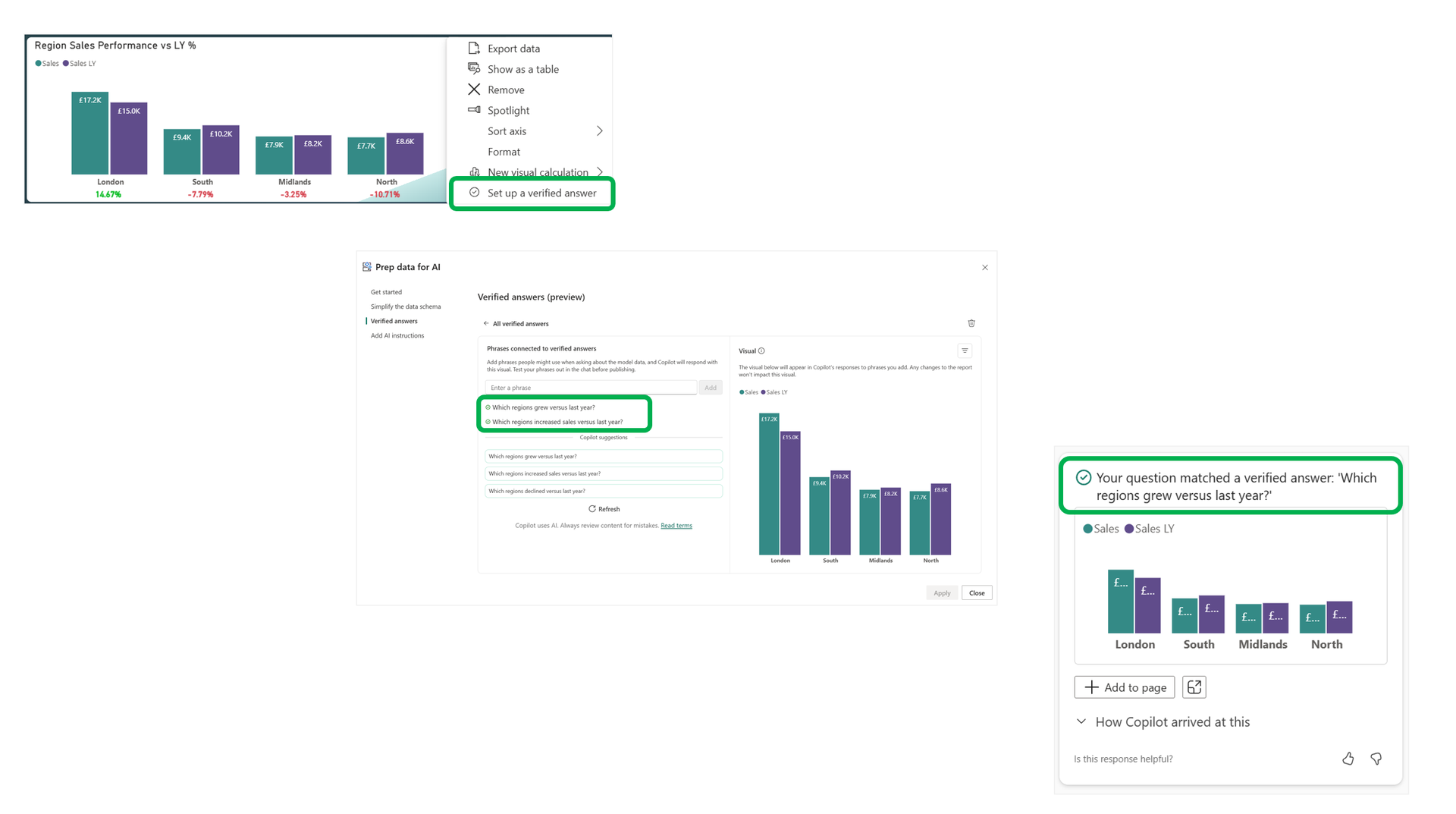
Setting up a Verified Answer to pin a Trusted Visual
Now notice what happens when a user enters “Which regions grew versus last year?”. They see that exact visual we chose and I also like the green tick at the top with the message “Your question matched a verified answer…”. It is a small detail, but it matters. It tells the user this has been preselected and approved, rather than being generated on the fly.
There are a few important considerations and limitations called out in the Microsoft documentation. For example, Microsoft recommend adding multiple trigger phrases (not just one) because users will ask the same question in different ways. Also, do not treat verified answers as a security feature, think of it as a consistency and trust feature. For the full list of limitations and tips, see the official Microsoft documentation here.
Missing Descriptions
We now come to descriptions. I did have a good play around with descriptions, and from what I could see, they were not influencing Copilot in the way I expected. For example, I had a Sales measure, but people refer to it as “Revenue”. I did not add a synonym. Instead, in the description I wrote something like “Total sales generated from revenue transactions” and tired this for various other measures in different ways. My initial assumption was Copilot would match the word “Revenue” in my question to that description and land on the Sales measure, but that was not the case.
After reading through the Microsoft documentation, it made sense why my test did not work. Descriptions are not currently used to help Copilot map business language during the main Q&A style experiences, so it will not treat a description containing the word “revenue” as a synonym for a Sales measure. Right now, descriptions are mainly used in specific experiences like search and DAX query related scenarios.
However, Microsoft mentioned that this will change over time, with descriptions playing a bigger role as Copilot capabilities mature. So it is still worth building the habit now, and as you can see in other parts of this blog, I have already called out the broader foundations needed to be Copilot-ready. In all honesty, I would have pushed for descriptions even before Copilot anyway, because a semantic model should be readable and usable as a business glossary, not just a technical artefact. For more details on this please have a look here.
Not Marked as Approved for Copilot
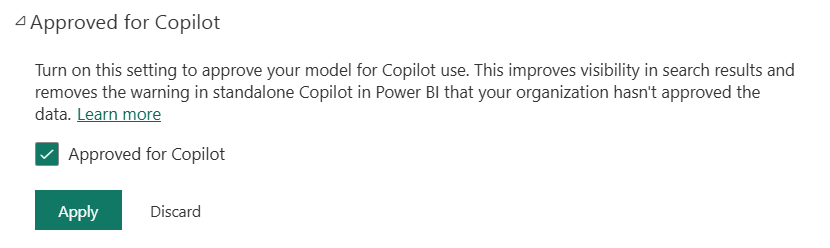
One final step that is easy to miss. Once you have done the work to prep the semantic model (schema clean-up, synonyms, instructions, verified answers, descriptions, aligning to a star schema and more), you should go into the Power BI Service and mark the model as Approved for Copilot.
Why does it matter? Because if the model is not approved, Copilot can put friction in front of users, basically warning that the answer might be low quality. When you approve the model, that warning behaviour is removed in the standalone Copilot experience, and any reports using that semantic model are treated as approved too. It is a small switch, but it is an important signal, and a clean governance step. Also worth noting, admins can choose to only show approved items in the standalone Copilot experience, which is a sensible way to avoid people chatting to models that are not ready yet.
How to do it is straightforward. Find the semantic model in the Power BI Service, open Settings, expand the "Approved for Copilot" section as you can see in the below screenshot, tick the box, and apply. Changes usually flow through fairly quickly, but if the model feeds lots of reports it can take longer to fully reflect everywhere.
Power BI Copilot Readiness Checklist
If you have made it this far, you have seen there is a lot to consider. I did not want this to be another “Copilot is amazing” blog. I wanted something you can actually apply. So below is a simple checklist you can use to assess your setup and work through the changes in a sensible order.
Step 1: Enable and Govern Copilot
- Confirm Copilot is supported for your tenant based on region and Fabric capacity location.
- Ensure you are using a paid Fabric capacity (Copilot does not work on trial).
- In the Admin Portal, enable the required tenant settings for Copilot and Azure OpenAI.
- Do not roll it out to everyone day one. Start with a pilot group, monitor usage and outcomes, then expand gradually.
- Decide upfront what “good” looks like for your organisation (accuracy, trust, adoption) and who owns ongoing oversight.
Step 2: Fix the Foundations (Semantic Model Basics)
- Align the model to a clean star schema wherever possible. Remember, Copilot or not, your models should be doing this already.
- Remove ambiguity and spaghetti patterns, especially many-to-many relationships that no one can justify, unnecessary bi-directional relationships and random tables added “just to make it work”.
- Define your KPI layer properly, so use explicit measures for metrics, not a model full of raw numeric columns and implicit sums.
- Keep the model readable, business friendly table, column and measure names that match the language the business uses.
- Take advantage of display folders, group columns appropriately and in a neat way, hide anything that isn't required by end users.
Step 3: Prep Data for AI (Make the Model Copilot-Ready)
- Use Prep data for AI to simplify the data schema so Copilot only considers what it should. Exclude technical fields and anything that creates noise or ambiguity.
- Add Synonyms for business language variation (including internal terms and acronyms), so map “Revenue” vs “Sales” vs “Sales Revenue”. Don't forget, stay away from Q&A tooling synonyms.
- Add AI instructions to teach Copilot how your business thinks, terminology and definitions, seasonality and business cycles, what “on target” means and where the budget lives and more.
- Add Verified Answers for common or important questions to pin trusted visuals to the phrases users actually ask. Use multiple phrases because users will not ask things the same way every time.
- Add Descriptions consistently, they do not influence all Copilot experiences today, but Microsoft have been clear they will matter more over time. Either way, descriptions should be used.
Step 4: Validate Before Scaling
- Test Copilot using real business questions from real users, not just "demo prompts". Actively look for failure such as wrong measure chosen, grain or interpretation of terms (revenue vs sales).
- Iterate where it matters most, so add synonyms for repeated language mismatches, add instructions for repeated ambiguity, create verified answers for the questions that drive the most value.
- Only after the pilot is stable, expand access to wider groups with basic enablement and guidance. Remember, phased approach, not a big bang.
Step 5: Approve and Roll Out
- Once the model is prepared, go into the Power BI Service and mark the semantic model as Approved for Copilot.
- If you want stronger control, use the admin option to only show approved items in the standalone Copilot experience.
- Confirm results respect row-level and object-level security and overall security settings so you wont have shared data to the wrong person.
- Keep it governed. A model can drift over time, and Copilot will reflect that drift instantly.
- Collect feedback from end-users, and roll it out with the right level of support and enablement.
When a Power BI Copilot Readiness Assessment Is the Right Next Step
A Microsoft Copilot readiness assessment is the right next step when you have enabled Copilot (or you are about to), but the experience is not landing. Typical signs are:
- Copilot gives answers that feel vague, inconsistent, or just not aligned to how the business defines metrics
- Users keep asking the same questions in different ways and Copilot keeps picking the wrong field or measure
- The semantic model feels heavy and messy, lots of tables, lots of columns, unclear relationships, slow reports
- People are already saying “I do not trust this”, which kills adoption fast
- You want to roll Copilot out wider, but you are not confident the model is ready for it
Also, it's worth calling out Chris Webb, who has been talking about semantic models, governance and how Copilot really behaves for a long time. I believe I have mentioned his blogs multiple times now on mine, as he is a genuienly source of trust for us, so be sure to check him out and his brilliant blog here.
Ready to Make Microsoft Power BI Copilot Deliver Real Value?
Copilot can absolutely speed up insight and make analytics more accessible. But we also need to be careful not to confuse the speed of producing things with genuine business value. If the foundations are weak, Copilot will not fix the problem. It will just surface it faster, and at scale.
A Copilot-Readiness Assessment from Metis BI looks at your environment end-to-end with one goal in mind: get Copilot producing reliable answers. We review your semantic models, relationships, naming, visibility, AI schema setup, synonyms, instructions, verified answers, and your governance approach. Then we give you a clear set of practical recommendations to apply, in priority order.
If you are planning your first rollout, or you have already enabled Copilot and it is not working the way you expected, this will help you get it under control and move forward with confidence.
Learn more about our Copilot Readiness Assessment: Copilot Ready Data Model Service.


%20(8).png)
.png)
