


.png)


Summary
Sharing a Power BI report with external users means granting secure access to people outside your organisation using Microsoft Entra ID B2B (formerly Azure AD B2B). External users must be invited as Guest users, licensed correctly and granted workspace, report or app access. This is not Publish to web, and it does not mean they can simply sign in to your tenant with an email and password.
Key Takeaways
- External users need their own Power BI licence, they must have one or you must provide it.
- If your workspace is on Fabric capacity (F64+), external users can use a Fabric Free license.
- Entra ID B2B Guest users are not the same as creating internal accounts in your tenant.
- External users usually access through a link or by switching tenants after signing in.
- Publish to web is public internet exposure, not secure sharing.
What You Are Actually Trying to Do
In plain English, you want someone outside your company to:
- Authenticate with their own work email.
- Access your tenant as a Guest.
- View a report (usually through an App).
- Without you creating and managing a separate account for them.
That is exactly what Entra ID B2B is for.
External Users Must Be Licensed
First things first, its important to know that external users need their own licence. If your workspace is hosted on a Fabric capacity (F64 or above), external users can access it using Fabric Free. However, if you are not on Fabric capacity, they will require a Power BI Pro or Premium per User license. They can use their own one from their home tenant or you must provide one for them. If someone tells you "external users do not need a licence", they are referring to Publish to web (public internet exposure), PBI embeded (sort of true) or they are just incorrect.
Microsoft Entra ID B2B (Formerly Azure AD B2B)
You may still see references to Azure AD or AAD, but that service is now called Microsoft Entra ID. B2B stands for Business-to-Business collaboration and here is the important distinction. You could create a brand new internal account in your tenant for someone external. For example: mike@metisbi.co.uk. But that means you own and manage that identity.
With B2B, you invite mike@abc.com as a Guest user, so he keeps his own email domain and identity. He simply becomes a Guest inside your Entra ID tenant. This is different from creating an internal account. You do not manage their passwords, their home organisation manages their identity. This is the approach I have been using for years. You can see Guest users in portal.azure.com under Entra ID, Users as the below screenshot shows:

Also, guest users are visible in the Microsoft 365 Admin Centre which you can see below:

Think about it. If Mike leaves ABC Ltd, his account is disabled there. Your access does not suddenly become “unsafe”. His identity is controlled at source.
The Big Confusion: "Can They Just Log In?"
This usually causes confusion or so it did over the years. Many assume that with B2B, external users can simply go to app.powerbi.com, enter their email and password and land directly in your tenant (guest tenant). This is not how it works. When they sign in, they land in their home tenant first, not the guest tenant. Traditionally, the only way to access the guest tenant was through the invitation link or the report/App link provided. As I said, this process confused many organisations I have been helping. Now we have an improvement which is there is a "Switch tenant" option in the Power BI Service.
Users can click their profile picture in the top right of the Power BI Service, and choose Switch Tenant as you can see in my screenshot below:
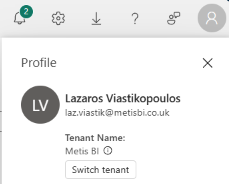
From there, they can switch into your guest tenant. If they use the direct report or App link you sent, it should take them straight into the correct tenant and content. But again, this switch capability was not always available. Previously it was link-only access. That is why some documentation and advice may still refer only to invitation links.
Fabric/Power BI Admin Settings Must Allow This
Before any of this works, your Fabric/Power BI admin settings must be configured correctly. Some invite the user, assign a licence, share the report and then wonder why nothing works.
External access is governed by several settings in the Fabric Admin Portal under Export and sharing settings. The primary control is the ability to invite external users to your organisation. The setting “Invite external users to your organisation” is one of the core ones. If this is disabled, B2B sharing simply will not work. Also there is an important nuance here. Even if the tenant setting is enabled, not every user can invite guests. The person sending the invitation must also have the appropriate role in Microsoft Entra ID, typically the Guest Inviter role (or higher administrative permissions).
Another detail that catches organisations out: disabling the invite setting later does not automatically remove access from guests who were already granted permissions. If you need to actively block access, you must manage that through Entra ID or Conditional Access policies. Also, several other related tenant settings can influence how external users experience your tenant, and these are listed here:
- Guest users can access Microsoft Fabric: controls whether guests can access Fabric at all.
- Guest users can browse and access Fabric content: governs their ability to discover and navigate content once inside.
- Users can see guest users in lists of suggested people: affects the people picker and reduces accidental external sharing.
- B2B guest users can set up and be subscribed to email subscriptions: controls whether guests can receive scheduled report emails.
- Guest users can work with shared semantic models in their own tenants: relevant for more advanced cross-tenant scenarios.
- Allow specific users to turn on external data sharing: controls broader external data sharing capabilities.
You do not need to enable everything for basic report viewing, but you do need the core guest access settings configured correctly. In most enterprise environments, I do not enable these tenant wide. I scope them to a dedicated security group. That way, only approved users or workspaces can share externally. This prevents uncontrolled guest sprawl and keeps governance tight. If you are unsure whether your tenant is configured correctly, have a look at our tried and tested approach: Power BI Governance services
Inviting a B2B Guest
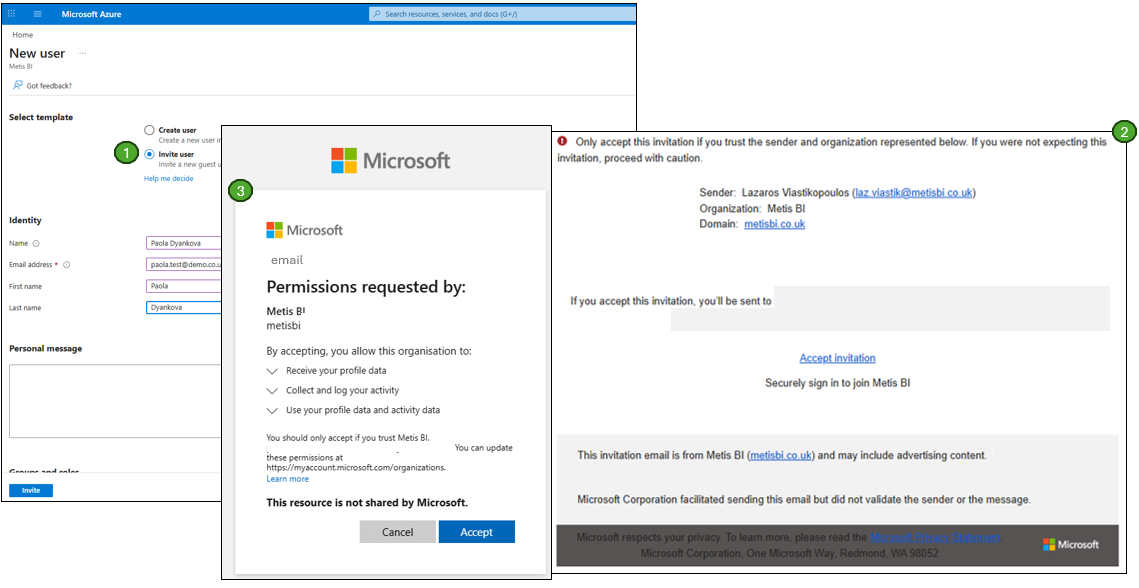
The process in Azure Portal is straightforward:
- Go to Microsoft Entra ID
- Select Users
- Add new Guest user
- Enter their external email address
- Send invitation
They receive an email invitation and they must accept it. After acceptance, you will see them listed as a Guest user in Azure Portal and in the Microsoft 365 Admin Centre.
Grant Access in the Power BI Workspace or App
Once they exist as Guest users, you must grant access in Power BI. So, this means:
- Add them to the workspace
- Grant them access to the App
- Share a specific report
When you do this, they receive another email notification and here is the part that caused confusion. Many people think they can now simply sign in at app.powerbi.com and see everything. Again, as explained above, this is not the case. To access the guest tenant, they must:
- Use the link provided in the email.
- Sign in (to their own home tenant) and manually switch to the guest tenant.
Publish to Web Is NOT External Sharing
Publish to web is not secure external sharing. So, please please make sure to not simply use this just because "it works". It generates a public link and makes your report available on the worldwide web. Anyone with the link can access it. Search engines can index it, it's not a clever workaround for licensing - it is public broadcasting. Do not use this for client, partner or confidential reporting. Only use it when your happy for the data to be shared with anyone with internet access.
What About Power BI Embedded?
Power BI Embedded is a different architectural pattern. It is typically used when embedding reports inside your own application or SaaS platform. That is outside the scope of this blog, but you can read my detailed explanation here: Power BI Embedded Analytics: A Guide to User Owns Data vs App Owns Data. Embedded can be the right solution for external users in customer portals. But it is not the same as B2B sharing through Guest access.
Common Mistakes I See
- Assuming external users do not need licences.
- Forgetting to assign the licence.
- Confusing internal accounts with B2B Guest users.
- Not enabling the correct admin settings.
- Using Publish to web for sensitive data.
- Not explaining tenant switching properly.
Need Help Setting This Up Properly?
External sharing is powerful, but only when governance, licensing and security are aligned. If you are rolling this out for clients, partners or subsidiaries or if you have already enabled it and things are not behaving as expected, we help organisations design this end-to-end properly. From tenant settings to workspace structure and security groups, we make sure it works first time. Learn more about our Proven Power BI Governance Approach.


.avif)
%20(8).png)
.png)