


Before the Design ribbon, report styling in Power BI Desktop was split across the interface. Themes sat in a dropdown on the View ribbon (that's where Microsoft's older instructions still send you), and page size and background lived in the Format pane. I think that made it easy to skip themes and format visuals one at a time instead.
In my test, the Design ribbon brought report styling into one tab, with themes, theme customisation, import and download, and buttons for page size, page background and wallpaper together. It became generally available in Power BI Desktop in the September 2026 update.
Definition: The Design ribbon is a ribbon tab that groups report-wide styling, the themes gallery, Customize theme, Download theme, Import theme, and shortcuts to the current page's size, background and wallpaper.
Key takeaways:
- One place to start from: when I checked, themes and the page setting buttons sat on one tab.
- Download theme only lit up once a theme was applied: it was greyed out on the default theme.
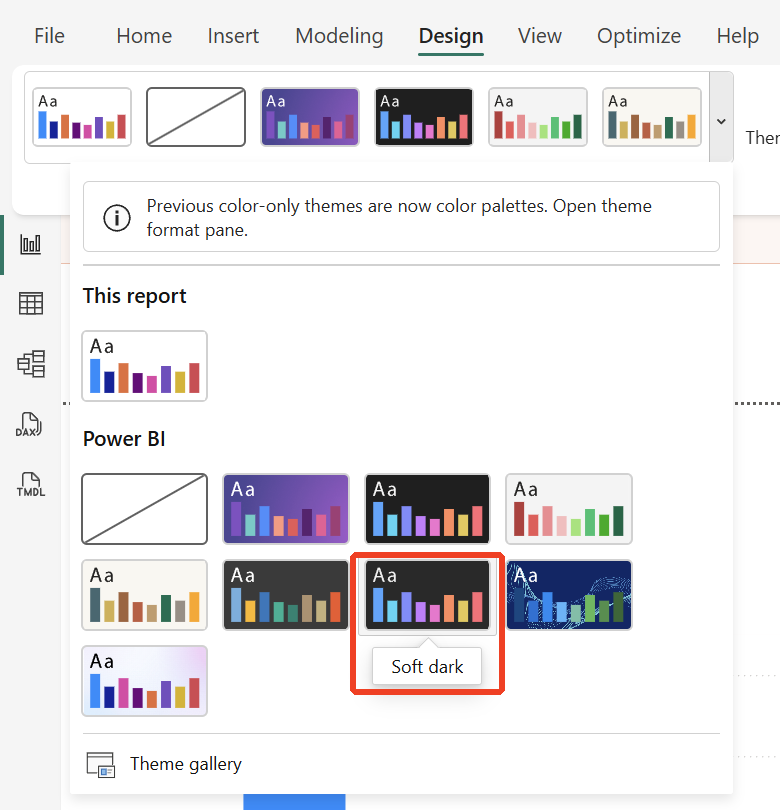
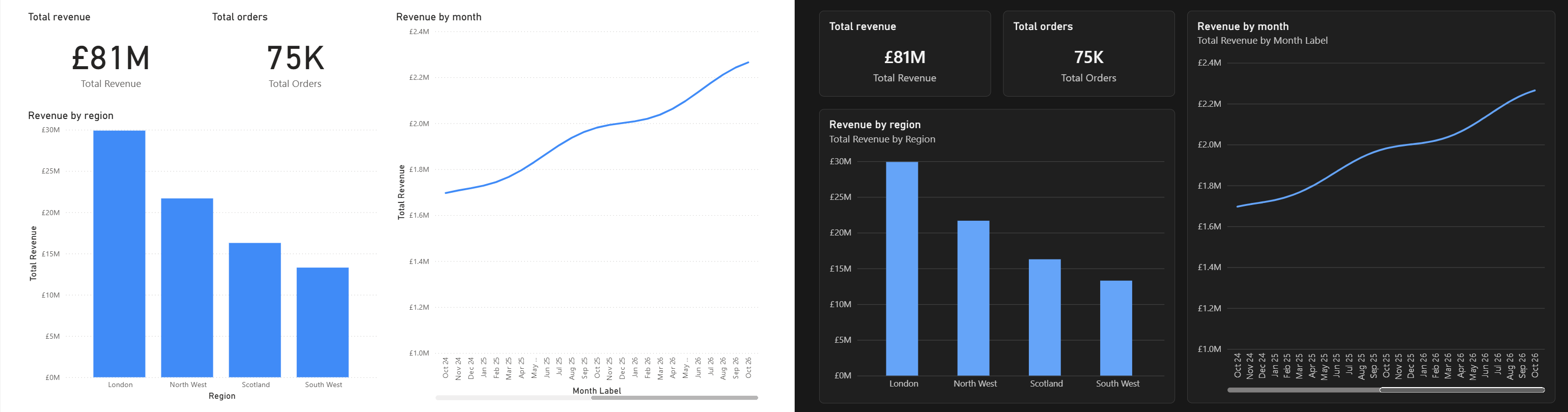
- Dark and Soft dark are both in the themes dropdown: applying Dark switched the canvas, the visuals and the filter pane together and added subtitles to the charts.
- Page buttons only touch the page you are on: Microsoft says the ribbon's page shortcuts are not report-wide.
What is on the Design tab
Open the Design tab in Power BI Desktop. In my test, it held:
- Themes gallery: built-in themes, with a dropdown to see them all and Theme gallery to see more.
- Customize theme, Download theme, Import theme: stacked next to the gallery.
- Customize page: Page size, Page background and Wallpaper, plus a How to create a theme button.

The 3 page buttons are shortcuts rather than new settings. According to Microsoft's Design ribbon page, each one jumps you to a part of the Format pane you may already know, and whatever you change there applies to the page you have open. If you want every page to share a size or background, Microsoft points you to the Page section of the Theme pane rather than the ribbon.
The dark themes
Microsoft's feature summary announced 2 new dark built-in themes, Dark and Soft dark, built on a new colour palette called Versa, with styling that closely follows Microsoft's Fluent 2 base theme. In my test, both were in the Design ribbon's themes dropdown, under Power BI. Hovering over each tile shows its name.
I applied the Dark theme to a page with 2 cards, a column chart and a line chart. One click, and the canvas, all 4 visuals and the filter pane (not shown in the screenshot) switched to dark. Two other things changed that I hadn't asked for. The visuals gained background panels, and both charts got automatic subtitles ("Total Revenue by Region", "Total Revenue by Month Label"). Ctrl+Z put it all back cleanly.
With Dark applied, Download theme became available. On the default theme it had been greyed out, so if you're looking for it on a fresh report and it seems disabled... that's why.

The same summary says the dark themes let you design on a dark canvas and go back to the default light theme "before publishing if needed", and that organisational themes can be applied from the ribbon too. I have not tested that.
Why I care more about organisational themes than the Dark theme
In my view, the bigger win is not the dark theme... it's the organisational theme. One theme file can carry your colours, fonts and visual defaults, and a developer applies it once at the start of a report instead of formatting every visual by hand. The Design ribbon does not create that theme for you, but it puts the buttons you need for it in one place. Going by Microsoft's description, here's what each one does.
- Download theme: it downloads the current theme. I find that useful for taking a theme from a well-designed report and turning it into the standard.
- Import theme: it imports a theme file. Microsoft's report themes page adds that organisational themes published by an admin show up in the themes gallery instead.
- Customize theme: it opens the Theme pane, where you adjust report-wide defaults.
The gotchas
What I found in testing
- Download theme needs a theme: it was greyed out on the default theme and became available once I applied one.
- Theme changes can add subtitles: the Dark theme turned on automatic subtitles in my test report. Check titles and subtitles after switching.
What Microsoft documents
All 3 points below are from Microsoft's Design ribbon page.
- Hand formatting beats the theme: formatting you apply directly to a visual or page takes precedence over the theme. If a theme change seems to do nothing on a visual, someone has probably formatted it by hand.
- Page buttons are per page: changes made from the page buttons apply to the current page, and report-wide page defaults go in the Theme pane.
- The service is different: the Design ribbon appears in the Power BI service in editing mode when you turn on the new ribbon preview. I have not checked this in the service yet.
Our view
- Light or dark is a standard, not a per-report choice: if your users view reports on a light intranet or in Teams, a dark report can look out of place. Decide it once as a standard rather than report by report.
How we use it at Metis BI
Report themes and design standards come up regularly in our governance work. We help organisations decide what an organisational theme should control and make it the default starting point for new reports. If that sounds like what your reports are missing, it sits within our Power BI governance services, and our Power BI templates give developers a consistent starting point to build from.
Summary
The Design ribbon in Power BI Desktop puts themes, theme import and download, theme customisation and page size, background and wallpaper in one tab, and it became generally available in the September 2026 update. In my test, both of the dark themes Microsoft announced, Dark and Soft dark, were in the themes dropdown, the Dark theme switched the whole page in one click and undid cleanly, and it added background panels and automatic subtitles to the visuals. Download theme stayed greyed out until a theme was applied. Microsoft says the page buttons only change the page you are on, and hand formatting on a visual still takes priority over the theme. In my view, the ribbon makes themes easier to reach, and the bigger win is agreeing one organisational theme that new reports start from.


.png)
%20(8).png)