


.png)


You start with one finance report in a Finance workspace and it's great! For now, everyone is happy. Then the execs want a report only they should see. Well, we cant create a folder inside the workspace and assign the execs permission to it. So, a second workspace now needs to be created. Then FP&A want theirs, hidden from everyone else too, and then comes a report they should all see. Four workspaces later, all under finance, each one existing purely to fence off who sees what. I have watched this exact escalation play out more times than I can count. For years it was my one real annoyance with Power BI apps, and app audiences are what removed it.
The short answer
A Power BI app audience is a defined group of users who see a particular subset of the app's content when they open it. Think of an audience as a folder inside the app, each report exists once in the workspace, appears in whichever audiences need it, and every group gets its own view of the same single app. Audiences give you granular control at the app level, so you no longer need a new workspace every time a new access pattern appears.
Key takeaways
- An audience controls which content each group sees inside a single app.
- A report exists once and can appear in as many audiences as needed: shared reports go in every audience, restricted ones only in theirs.
- Audiences replace the old habit of creating a workspace per group, which is what drives most workspace sprawl.
- Audiences control which reports people see, not which rows of data. That is row-level security, a separate design.
- Though out of scope for this blog, we also have Org Apps, which should be considered when deciding how to strcuture overall MS Fabric and Power BI framework.
How audiences work
When you publish an app from a workspace, you define audiences and assign users or, better, security groups to each. The finance scenario above becomes one Finance workspace and one Finance app: the analysts, the execs and FP&A each get their own audience, the report everyone needs appears in every audience, and the restricted reports appear only in theirs. There is no duplication, one copy of each report exists, and the audience configuration decides who sees it. One thing worth being clear on, content left out of an audience is not just hidden from that group, it is not accessible to them through the app at all. So the audience is a genuine access boundary, not a cosmetic one. You can create up to 25 audiences in one app, which is more than most estates are ever likely to need.
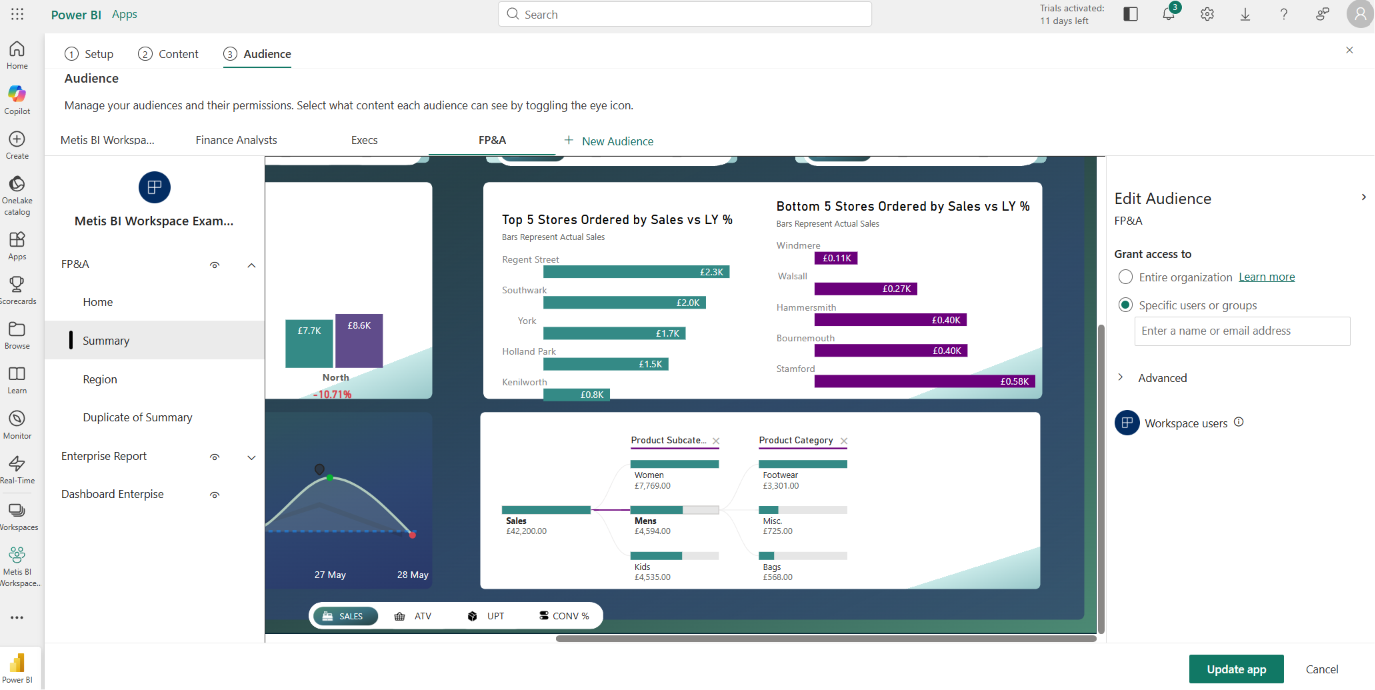
Below you can see step 3 of the app creation and update process, the Audience step, and this is where it all happens. Along the top, I have created an audience per group, Finance Analysts, Execs and FP&A. On the left, you can see the content included in the app, and the eye icon against each item decides whether the selected audience can see it or not. So the FP&A audience here sees their own report plus the shared enterprise content, and nothing belonging to anyone else. On the right, under "Grant access to", is where you assign the users, or better, the security groups, for that audience. One workspace, one app, and each group seeing exactly what it should... this is the whole point.
The senior stakeholder trap
One detail that is not obvious until you test it, some senior stakeholder groups usually need to see everything, so the instinct is to add them to every audience. Do that and Power BI surfaces a system-generated "All" tab alongside every audience tab, and any report sitting in multiple audiences appears repeatedly across the navigation. We tested this in our own tenant, and the result is a cluttered app that is hard to navigate and harder to explain. The clean answer is a dedicated executive audience containing every report. Senior users sit in that one audience only: a single curated view, no "All" tab, no duplicates.
What audiences are not
Audiences decide which reports a group sees. They do not decide which rows of data a person sees inside those reports: that is row-level security, defined on the semantic model, and the two are often confused. A sales manager and a sales rep can sit in the same audience, open the same report, and see different data because RLS filters it per person. I have covered the mechanics in How to Configure Row-Level Security in a Microsoft Fabric Data Warehouse. Audiences are also not a sharing method on their own, they live inside apps, and I compare all the sharing routes in How to Share Power BI Reports. And they are not a replacement for thinking about workspace structure, which I cover properly in Designing a Power BI and Microsoft Fabric Framework.
How Metis BI helps
Most workspace sprawl we untangle exists because audiences were never used: every new access request became a new workspace, and the estate grew sideways. We help organisations collapse that sprawl back into a clean app and audience model, one front door, each group seeing exactly what it should. If your workspace list has grown faster than your team, our Power BI and Microsoft Fabric governance assessment is a good place to start.
Frequently asked questions
How many audiences can a Power BI app have?
Up to 25 per app. In practice most organisations need far fewer, and if you find yourself approaching the limit, the workspace structure probably needs a rethink before the audience list does.
Can one report appear in multiple audiences?
Yes, and this is the point. The report exists once in the workspace and can be made visible to as many audiences as need it, with no duplication and no drift between copies.
Are app audiences the same as row-level security?
No. Audiences control which reports a group sees in the app. Row-level security controls which rows of data a person sees inside a report, and it is defined on the semantic model.


.png)
.avif)
.png)