


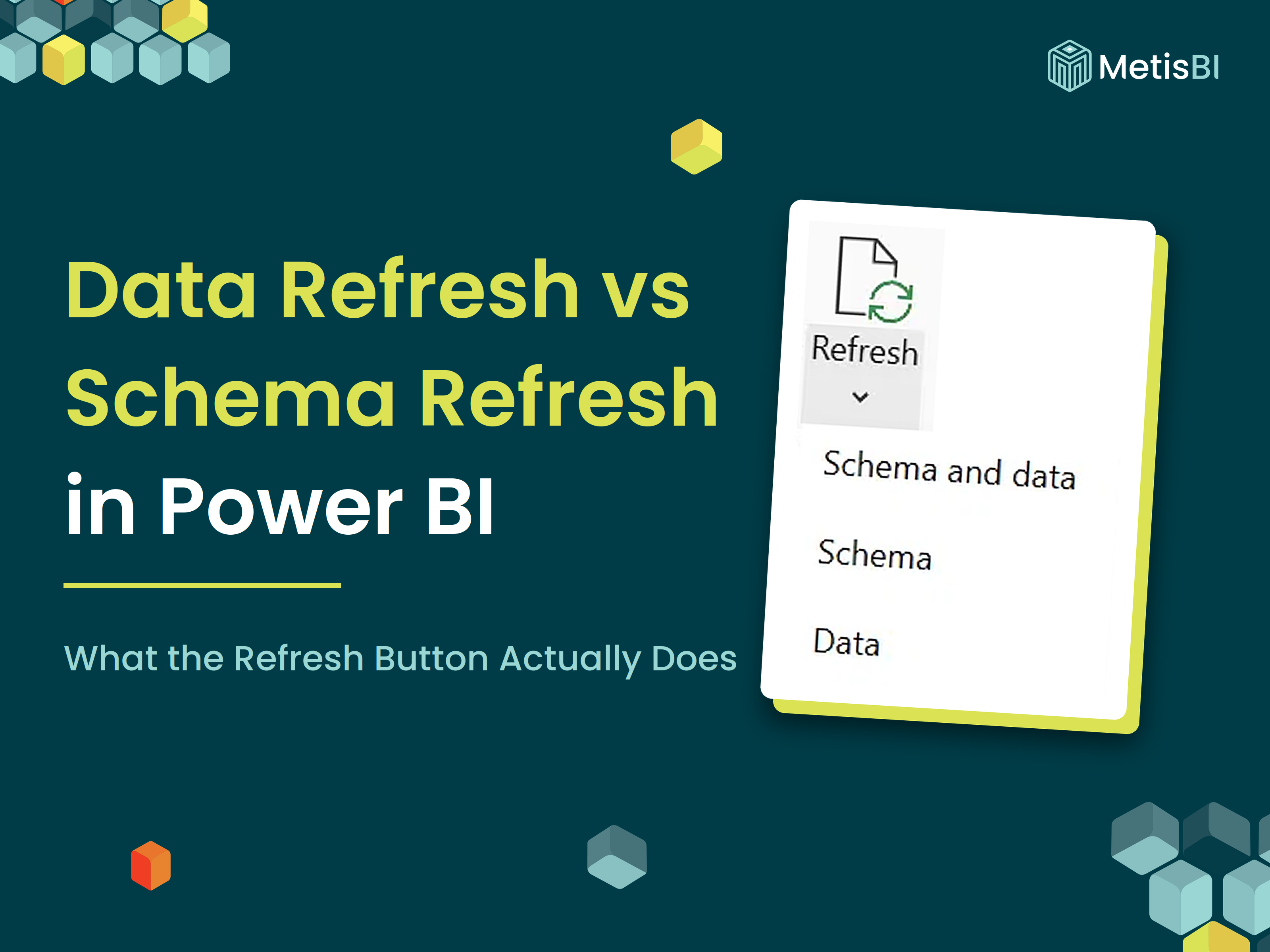


Every Power BI developer has clicked Refresh thousands of times. If you have used Power BI from day one, the Refresh button in Desktop was exactly that... just a button. One click, no dropdown, no choices. Now expand it and you get three options, because a refresh was two different operations wearing one name. Power BI lets you control the two separately, in Power BI Desktop and since the August 2026 update, in the Power BI Service as well.
A data refresh loads the latest rows from your data source into the existing semantic model. The structure of the model is untouched. A schema refresh (Microsoft also calls it a schema sync in the docs) applies structure changes from the source to the model, a new column, a renamed column, a removed column, a data type change. More on these throughout the blog! For years the Refresh button ran both together, schema sync first, then data. Now you can choose one without the other and knowing when to do that is the useful part.
One thing before we start. Everything below comes from the Microsoft documentation and I tested all myself to be sure, on a Fabric SQL database with an import model and a Direct Lake model side by side. Where what I saw did not match the documentation or was unclear, I called it out.
Key takeaways:
- Data refresh updates the contents of your tables, the rows. Schema refresh updates the shape of your tables, the columns and their data types. Two different operations, two different risks.
- A scheduled or on-demand data refresh in the Power BI Service performs a data refresh only, so it still fails when a source column or table is renamed or removed. The new options are not selectable for scheduled refresh.
- Power BI Desktop split the Refresh button into Schema and data, Schema, and Data a while back. The Service Model view gained refresh options in the August 2026 update, but what you actually get there varies, so check your own tenant.
- A schema sync is not a harmless catch-up. In testing it completed successfully and still left broken measures and visuals behind to repair by hand.
- On a governed semantic model, who is allowed to sync schema is a control decision, not a click.
What "refresh" means in Power BI
Before the comparison, worth knowing that refresh isn't one thing. When you press Refresh, Power BI works out which operations your semantic model actually needs and runs those. Microsoft's documentation names several types and I'd say most people only ever think about the first one.
- Data refresh: loads the latest rows from the data source into an import semantic model. This is what most people mean by refresh.
- Schema refresh: applies structure changes from the source, such as a new column, a renamed or removed column, or a data type change.
- OneDrive refresh: synchronises a semantic model with its source file where that file lives in OneDrive or SharePoint Online. It updates the model from the file, it does not pull data from the original data sources.
- Refresh of query caches: rebuilds cached query results after a data refresh, where query caching is enabled on a capacity.
- Tile refresh: updates the cached results behind dashboard tiles - but who on earht uses a Power BI Dashboard?!?
- Refresh of report visuals: re-runs the queries that populate the visuals on a report page.
Which ones apply depends on your storage mode. Only import models need a data refresh, because only import models hold a copy of the data. DirectQuery and live connection models query the source when a visual runs, so there is nothing to reload. Direct Lake models read their data straight from OneLake, so a refresh there is about pointing the model at the latest data rather than importing it. Push models are different again, data is pushed into them rather than pulled. By the way, if storage modes or connectivty types I am calling out in this blog are unclear, I have covered them properly in storage modes demystified.
To narrow it all down for you, this blog is about the first two (data refresh and schema refresh) as displayed in the earlier screenshot above, because they are the pair people confuse and the pair that now have their own buttons.
The failure that teaches everyone the difference
Here's how most people learn this distinction... the hard way. A source system owner renames a column. Nobody tells the BI team (they rarely do). The next scheduled refresh in the Power BI Service fails, the failure email lands, and someone spends a morning working out why a refresh that ran fine for months suddenly will not. I have watched this exact sequence play out on client side many times over the years and it is almost never the BI team's doing. Side note, this is also a reason to build semantic models on SQL views rather than tables. The view sits between the source and the model, so a rename underneath can be absorbed in the view definition without the model ever noticing.
The reason is simple once you see it. A data refresh in the Service, whether scheduled or on-demand, loads rows into the structure the model already has. It does not look at the source structure at all. So when the model asks for a column that no longer exists under that name, the refresh fails.
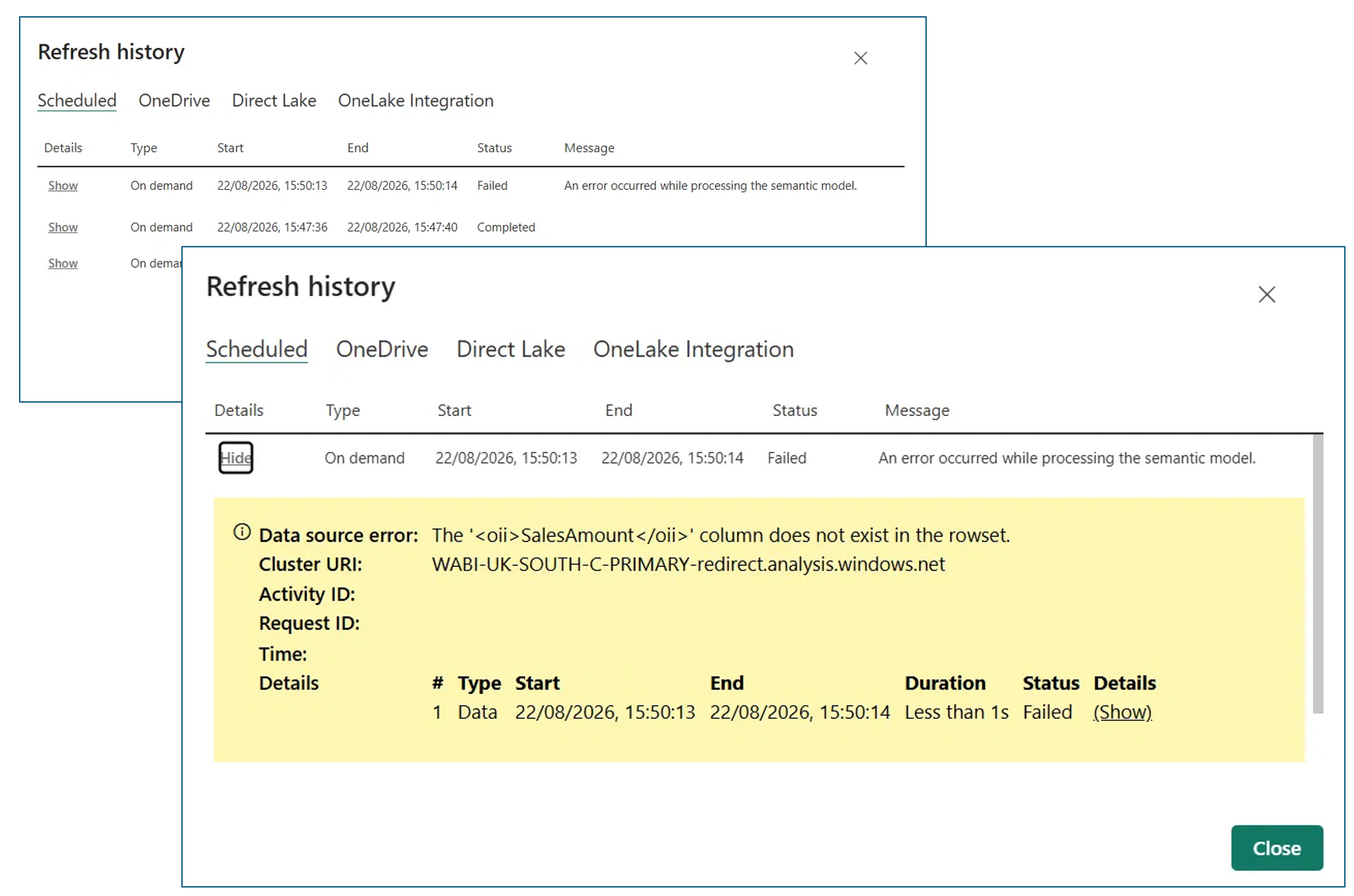
In my setup I renamed a column behind a working model to prove it. Below is the refresh history, a clean run and a failed one minutes apart, with nothing changed in between except the column name at the source. Expand the failed run and the error names the problem outright, the column "SalesAmount" does not exist in the rowset. Look at the Details table too, a single step of type Data. No schema step ran, because none was ever going to.
Microsoft's documentation says the fix is a schema refresh in Power BI Desktop followed by republishing the semantic model. That is correct and it is worth being precise about what "fix" means here, because I ran it. The schema sync in Desktop completed without error. It removed the old column which is "SalesAmount" from the model and brought the renamed one in which is "OrderValue". Then everything downstream that depended on the old name broke, in three different ways. Here is the report straight after the sync.
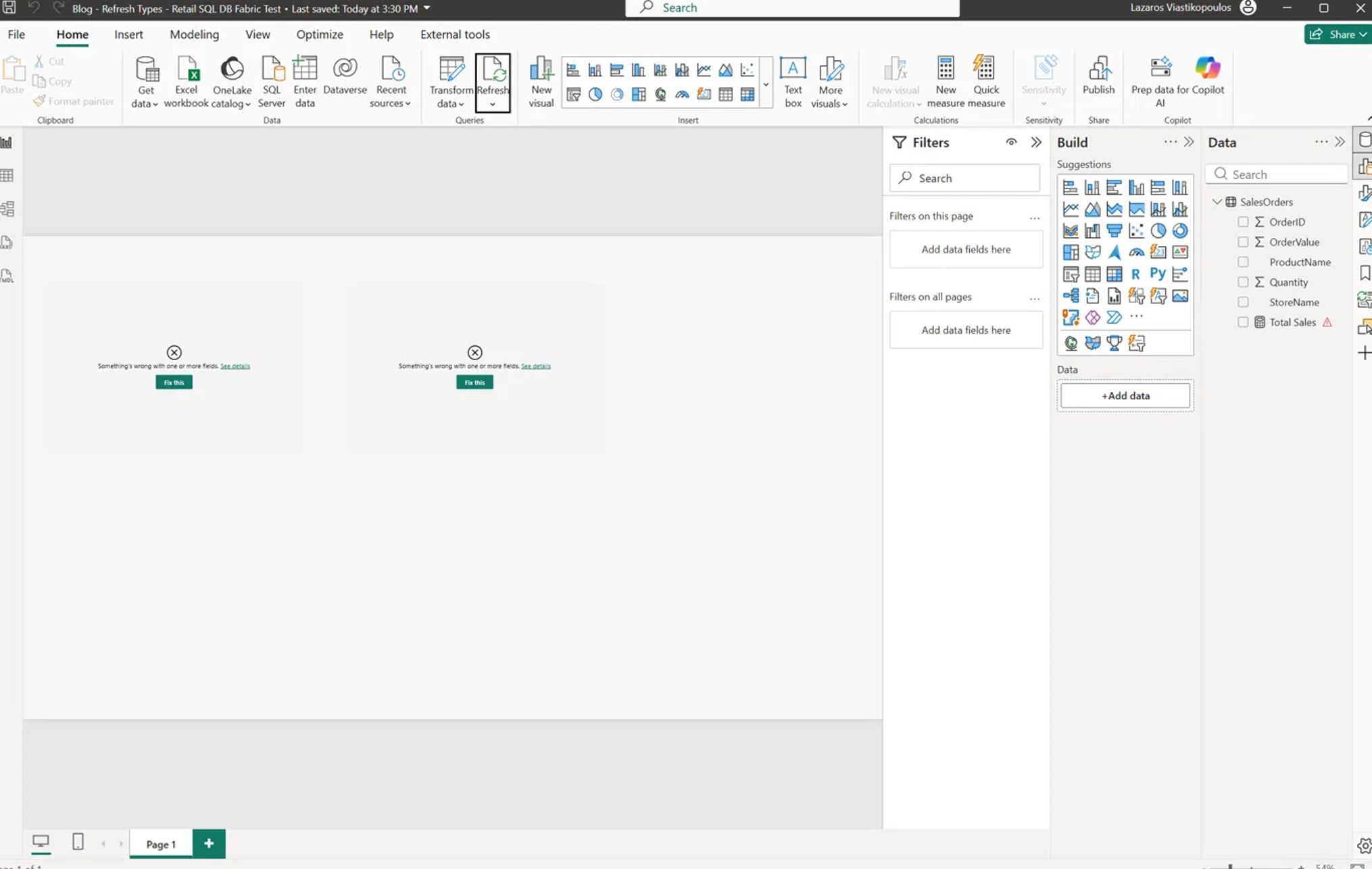
As you can see above, the measure "Total Sales" measure survived as an object but stopped working, notice a warning icon beside it in the Data pane and a plain DAX error below saying the column cannot be found. Both visuals broke, showing "Something's wrong with one or more fields" and offering a Fix this button to remap the field by hand. The Power Query query itself did not error, because it never named the column, it simply pulled the table and returned whatever columns were there.

One trap on that last bit, and it caught me for a second. When I opened Power Query straight after, the preview still showed the old column name, because previews are cached and had not been recomputed. Anyone looking at that would reasonably conclude the rename had not taken and go debugging the wrong thing. Hit Refresh Preview, the query re-evaluates against the live source, and the renamed column appears with no error at all. And this bit matters more than it looks. Whether your queries break depends on how they were written. A query built with Choose Columns or Remove Columns names columns explicitly and will error on a rename. One that pulls a whole table will not. So the schema sync does not repair your model, it updates the structure and hands you the list of things to fix.
Notice what the failure tells you... the data refresh and the schema refresh were never the same operation. The Service just did not give you a schema option until recently, so the difference only surfaced when things broke.
What a data refresh does
A data refresh imports the latest rows from the data source into the tables of your semantic model. That is it. Structure stays exactly as it is.
Easy enough to prove, so I did. I added a new column "Channel" to the source table in the Fabric SQL Database, populated it, then ran Data on its own in Desktop. The model still showed five columns. The new one was simply not there. I then ran Schema and data straight after and there it was, values and all. The structure of your model only moves when you ask it to.
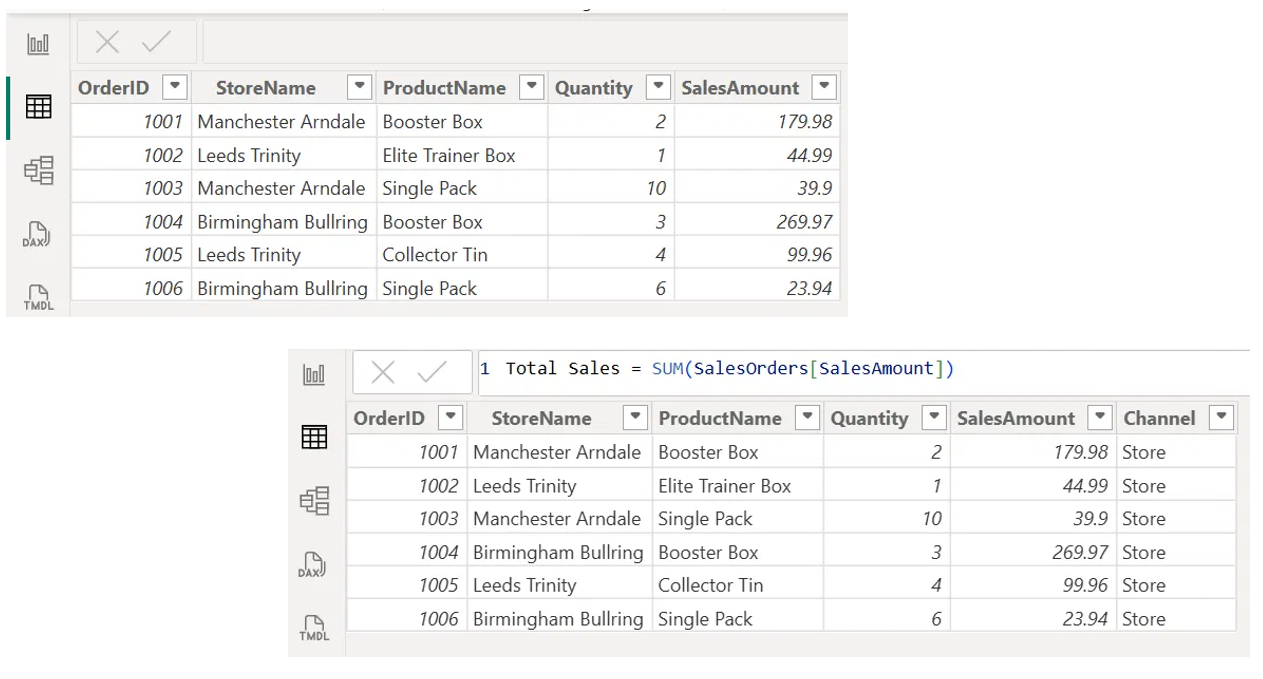
There is a second reason a new column might not appear, worth knowing so you do not chase the wrong one. If your Power Query steps name columns explicitly, through Choose Columns or similar, a new source column stays out of the model until you edit the query to include it. No refresh of any kind will bring it in.
One more thing about data refreshes, because it catches people out constantly. A data refresh updates the model. It does not update what is on your screen. So you can have a report open in the browser, watch a refresh complete successfully, and see your numbers stay exactly the same. The new data is in the model, but the visuals on your page are still showing the results they calculated when the page loaded. Reload the report or hit Refresh visuals in the top menu, and the numbers catch up. That is the refresh of report visuals from the list earlier, doing its job.
What a schema refresh does (and what it can break)
A schema refresh applies source structure changes to the semantic model. New columns appear, data type changes come through and renamed or removed columns are removed from the model. It applies to import, DirectQuery and Direct Lake tables.
Then I tested it the other way round, changing the data instead of the structure. I updated a value at the source, one row, then ran Schema on its own. The totals did not budge. Ran Data straight after and the number moved. Structure and rows are two separate jobs, and each button does exactly one of them. See results below:
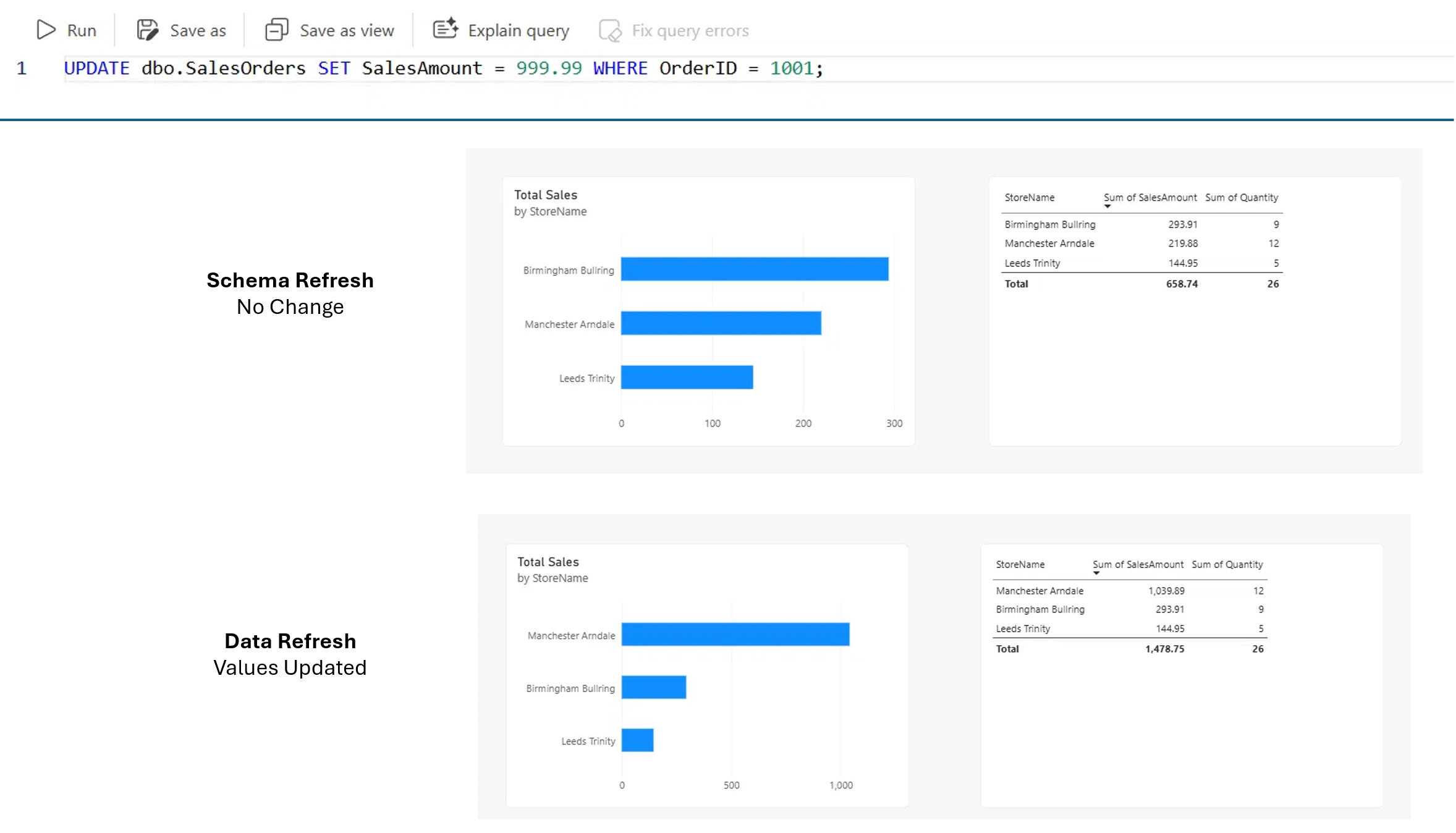
That last behaviour in the paragraph above is the one to respect. When a schema sync removes a column, everything depending on that column is left pointing at nothing. Microsoft's documentation lists the casualties, visuals and DAX expressions including measures, calculated columns and row-level security rules, along with any relationships built on those columns. My own test earlier bears that out on the first two. Worth thinking about what the row-level security case would mean in practice, a filter that no longer filters (not good).
A schema sync is not a harmless "pick up the latest changes" button, it is a structural change to your model with everything that implies. Treat it with the same care you would treat editing the model by hand.
The refresh options in Desktop and the Service
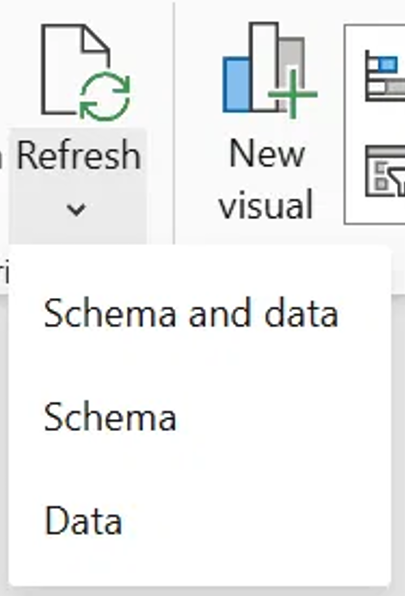
Power BI Desktop split the Refresh button a while back, and I'd guess plenty of people still haven't noticed the small arrow underneath it. Expand it in the Home ribbon or the Data pane and you get three options:
- Schema and data: a schema sync first, then a data refresh. This is the old behaviour and the default.
- Schema: applies source structure changes to the model without loading data.
- Data: loads the latest rows while preserving the current model structure.
Worth noting, Microsoft's documentation calls these "Refresh schema and data", "Sync schema only" and "Refresh data only". The buttons in the product are labelled more simply than that, so do not go hunting for the longer names. The Service got the same treatment in the August 2026 update, three options on the Refresh button plus the ability to refresh a single table through Model explorer rather than the whole model.
What you actually get varies, so check before you plan around it. On my own tenant, a Fabric SQL database feeding an import model and a Direct Lake model in the same workspace, the Model view dropdown gave me two options rather than three, in editing mode, on both models.
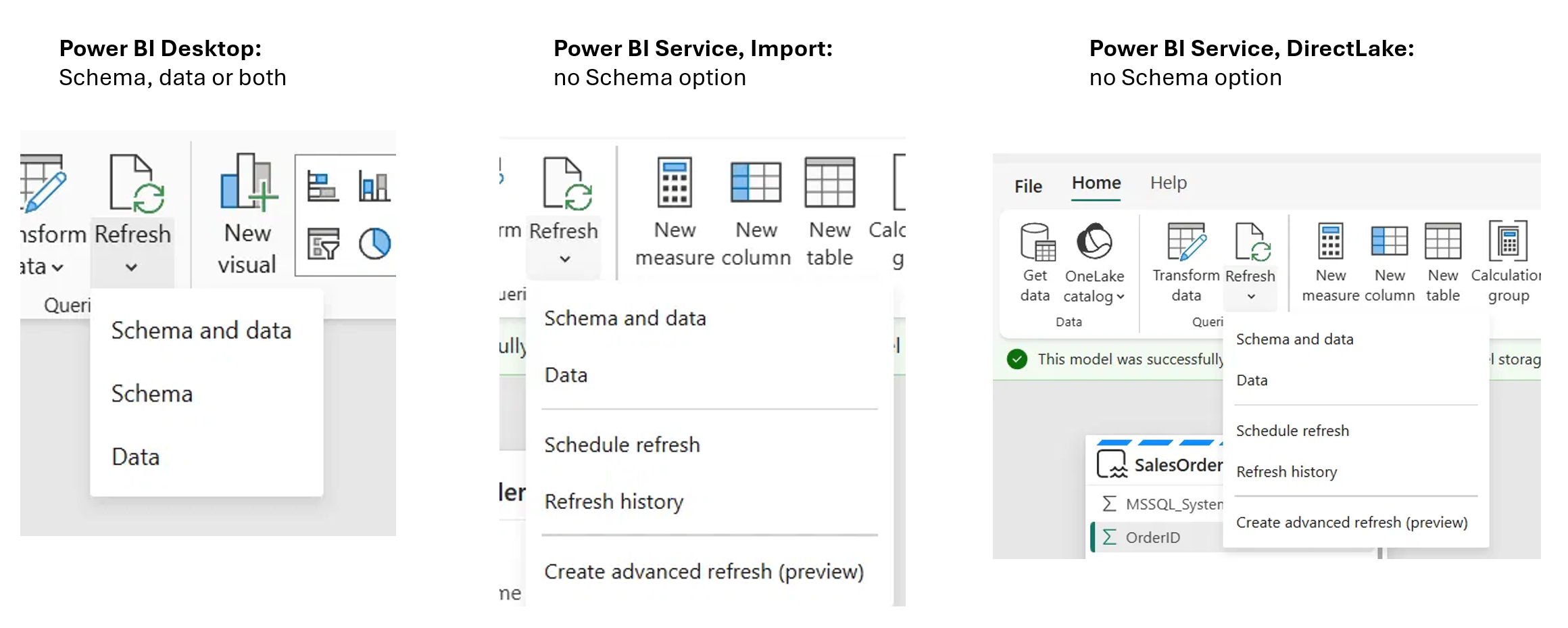
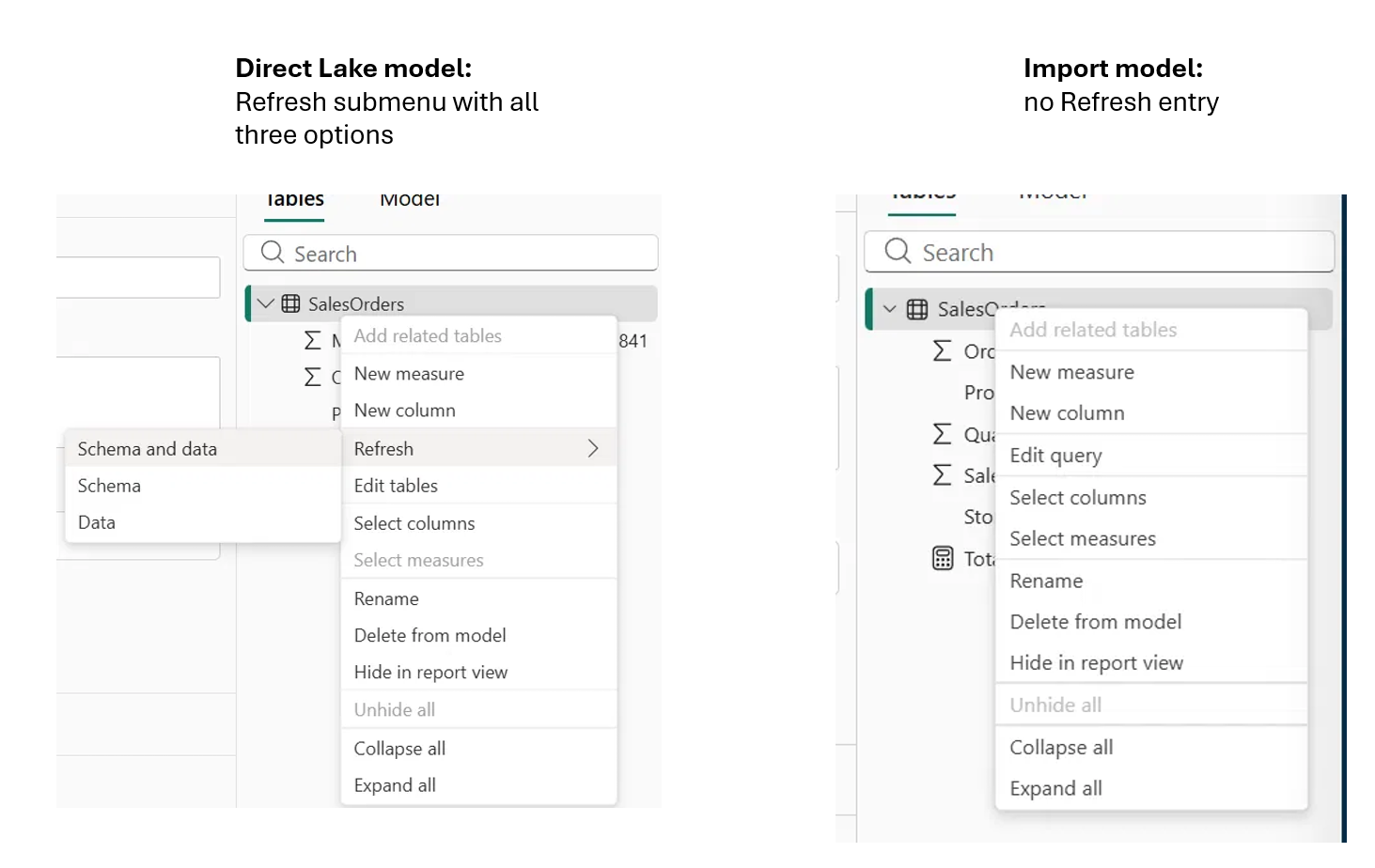
Table level was a surprise. Right-click a table in Model explorer and the Direct Lake model offered all three refresh options, while the import model had no Refresh entry in the menu at all.
Now, a quick word on scheduled refresh, because I can see beginner readers getting tangled here. Scheduled refresh is the automation you configure in the semantic model settings in the Service, pick your time slots and Power BI refreshes on its own, connecting directly for cloud sources or through a gateway for on-premises ones. That is a different surface from Model view, which is where you open and edit the model itself in the Service.
The important part, and this is important so I will repeat it, none of these options change how scheduled refresh works. A scheduled refresh, and the Refresh now button, perform a data refresh. Microsoft's own wording on that settings page is a giveaway, it describes defining a data refresh schedule to import data from the data source. There is no schema option to configure into a schedule. That is why a schedule still fails on a renamed or removed source column. The refresh options are a choice a person makes while working in the model, in Desktop or in Model view. Do not read the update as "the Service now handles schema changes automatically", because it does not.
The Direct Lake case, keeping upstream changes out of a curated model
This is the scenario where the split earns its keep. A Direct Lake semantic model sits on Lakehouse or Warehouse tables in Fabric, both are Delta tables in OneLake and both support Direct Lake mode. An engineer adds columns to one of those tables, staging fields, helper columns, whatever the pipeline needed. You want the latest data in your model. You do not want those columns in it.
A data refresh gives you exactly that, current rows, curated structure intact. From my experience, this matters more in Fabric than anywhere else, because the people changing the tables and the people owning the semantic models are often different teams moving at different speeds. A curated model is a promise about structure. Refreshing data without the schema lets you keep that promise while the world changes underneath you.
When to use which
The buttons are easy. The judgement is the useful bit, and I always tell clients the same thing here, pick a default and make it deliberate:
- Data: your default when the source structure has not changed and you want current rows. Also the right choice on Direct Lake models exposed to upstream change, and on any certified model where structure changes should go through review rather than arrive through a refresh.
- Schema: when you know the source structure changed and you want to bring it in deliberately, see what it does to the model, and fix what breaks before any data loads.
- Schema and data: fine for development, and for models where the source is stable and owned by the same team building the model.
- Table-level refresh: one table changed, the model is large, and refreshing everything is wasted processing (where your tenant offers it, see above).
Think about what "data refresh as the default on certified models" actually does. It turns schema change from something that happens to your model into something someone chooses to do to it, with a name attached. That is a lot of governance for one setting.
Who should be allowed to sync schema
Here is the thing many will miss in the excitement about new buttons... the Service options put schema sync in front of more people than ever before. Anyone who can open a semantic model for editing in the Service can now pull source structure changes into it, no Desktop, no PBIX, no republish. On a personal project, great. On a certified model feeding a leadership pack, that is a new way to change production, handed to a wider audience.
The questions worth answering for your estate are not technical. Who owns the structure of each certified semantic model? When a source team plans a structure change, how does the model owner hear about it before the refresh fails? Is schema sync on a production model a reviewed change or an anytime click?
This is one of those things we give a lot of attention to in Metis BI. The new refresh options are genuinely useful, and they also hand more ways to change a production model to more people. We help teams set a refresh strategy across their estate, decide schema ownership for certified models, and put guardrails in place that protect trust without locking everyone out. If your refresh failures keep tracing back to source changes nobody announced, that is a process problem wearing a technical costume. Learn more about our Power BI governance services.
If refresh duration itself is the pain, long refreshes, timeouts, models that grew past their design, that is a different conversation, and our report optimisation services cover it.
For the full mechanics of every refresh type, Microsoft's data refresh documentation is the place to go.
Summary
Data refresh moves rows. Schema refresh moves structure. They were always two operations, the Refresh button just hid the seam until something broke. Now that Power BI Desktop and the Service let you run them separately, the real question is not which button does what, it is who in your organisation should be pressing which button on which model. The refresh options are a feature. Deciding who uses them is governance. Get that decision right and the new options make your models safer. Skip it and you have simply given more people a faster way to break production.


.png)
.png)
.png)