If you've used a date range slicer in Power BI, you'll know the slider... and in my test report the default had white handles on a grey line. Date range slicers are on a lot of the reports I build and review.
Slider colour options for the Slicer visual became generally available in the September 2026 update.
Definition: Slider formatting is a set of options in the Slider section of the Slicer visual's Format pane. Microsoft's slicer page says it's there for the styles that include a slider (Between, Before, After and Date picker), and it covers the handles you drag, the part of the track between them (the selected range) and the rest of the track. It also has an on and off toggle for the slider itself.
Key takeaways, all from my own testing:
- Where it lives: select the slicer, Format visual, Slider. It has its own on and off toggle.
- 3 parts: Handles, Selected range and Track, each with its own colour.
- Responsive changes the handles: round handles with Fill color, Border and Size when Responsive was on, and thin rectangular bars with Border, Width and Height when it was off.
- Watch the handle border: setting the Selected range colour also changed the handle border to match.
Where the slider settings live
Select a slicer set to Between or Date Picker, open the Format pane and expand Slider. In my test, hovering over it showed the tooltip "Controls slider handle colors, selected range color, track color, and handle size". The Slider section has:
- Handles: Fill color, Border and Size, with size at 26 px. These were round handles, with Responsive on.
- Selected range: Color.
- Track: Color.
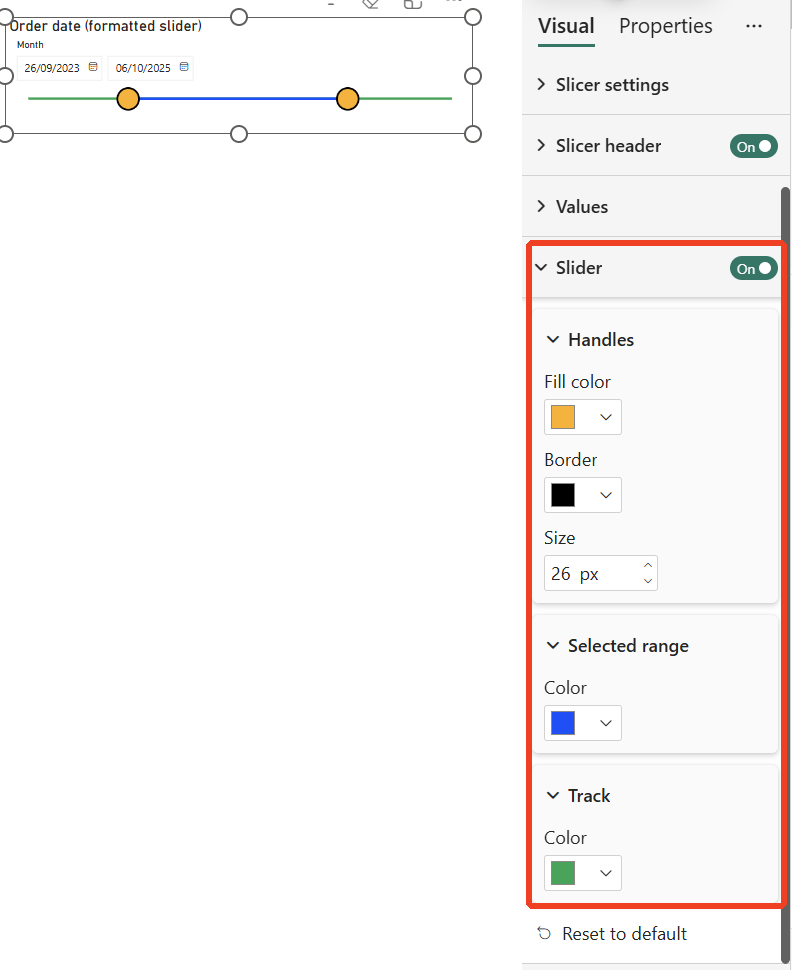
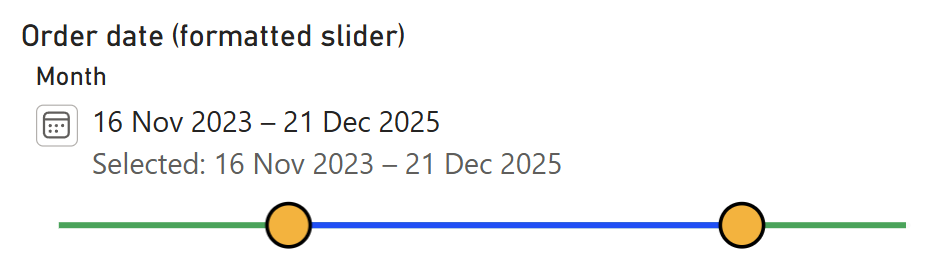
To make each part obvious, I used deliberately loud colours: amber handles with a black border, a blue selected range and a green track. Then I put the formatted slicer next to an identical one left on the defaults. Each change applied instantly. I also narrowed the selected range, otherwise the selected range covers the whole track and you never see the track colour.

One thing I didn't expect, and it happened all 3 times I tried. When I set the Selected range colour, the handle border changed to the same colour too, even though I never touched the Border setting. The Border swatch in the Format pane updated to match. If you want handles with a contrasting outline, set the border last, after the range colour. That is what I did to get the black outline above.
Date Picker works the same way
Microsoft's feature summary shows the slider options on a date range slicer. The screenshots above use the Between style, so I switched the same slicer to Date Picker, using the Style setting under Slicer settings in the Format pane. The colours carried over.
Responsive off changes the handles
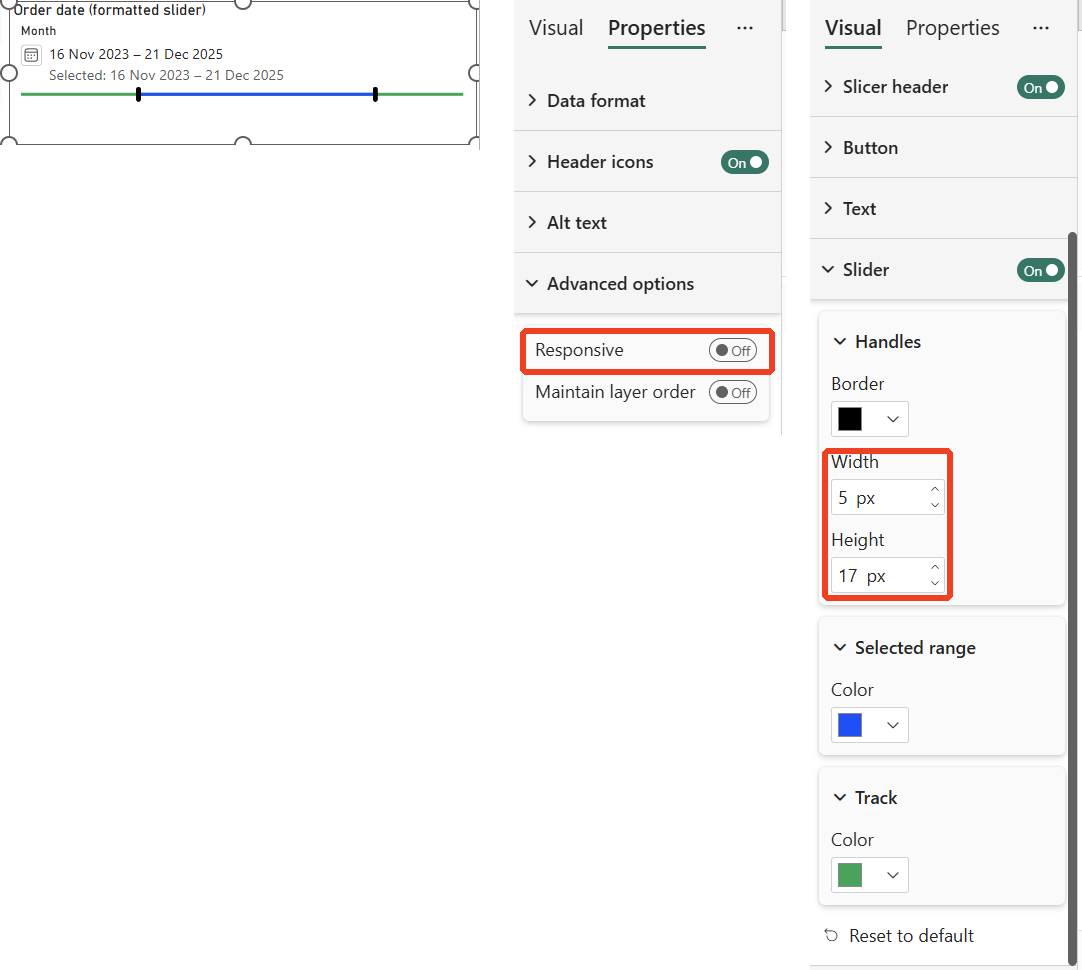
Turn Responsive off (Format, Properties, Advanced options) and, in my test, the handles became thin rectangular bars. The Handles card then showed Border, Width (5 px) and Height (17 px) instead of Fill color, Border and Size. Fill color was not listed at all.
Turning the slider off
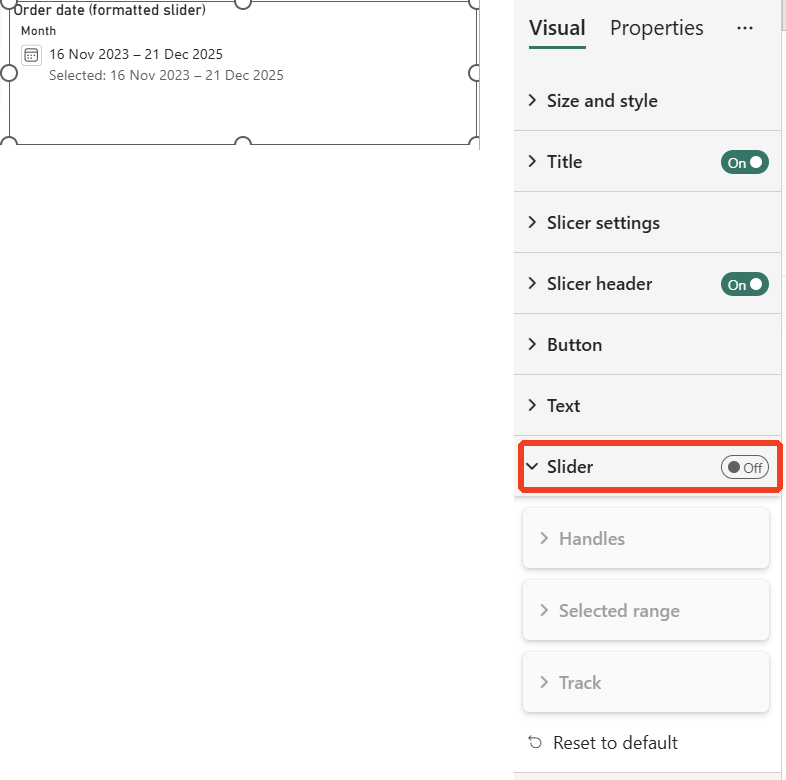
Switch the Slider toggle off and, in my test, the slider disappeared and the Date Picker slicer showed only the date range text. The Handles, Selected range and Track cards were greyed out.
The gotchas
What I found in testing
- Changing the range colour also changes the handle border: It happened all 3 times I tried. Set the border afterwards if you want them different.
- Responsive off removes Fill color: with rectangular handles, the Handles card had Border, Width and Height only.
- Colours carry across styles: switching from Between to Date Picker kept all 3 colours.
What Microsoft documents
Both points below are from Microsoft's slicer page.
- Only slicer styles with a slider: the Slider section applies to Between, Before, After and Date picker.
- The handle options depend on Responsive: Microsoft describes round handles when Responsive is on and rectangular bars when it is off, which matches what I saw.
Our view
- Pick colours for contrast, not just brand: a pale handle on a pale track can look clean in a design review and still be hard to see on a projector or for anyone with low vision. Check contrast against the background.
- It is set per slicer: if you have the same date slicer on 10 pages, that is 10 slicers to format, unless you format one and copy it. I have not tested whether theme files carry these slider settings, so check before you rely on it.
How we use it at Metis BI
A consistent, readable set of controls is part of how we finish a report, alongside page layout, colour and labelling. Slider colours are a small piece of that, but on a page where the date slicer sits at the top, it is one of the first things people see. If your reports work but look like they were put together from defaults, our Power BI report development services cover the design pass as well as the build.
Summary
The Slicer visual's Slider section lets you turn the slider on or off and colour the handles, the selected range and the track, and it became generally available in the September 2026 update. In my tests it worked on both Between and Date Picker slicers, changes applied instantly, and setting the range colour also coloured the handle border, so set the border last. With Responsive off, the handles became rectangular bars sized by width and height, with no fill colour option. Pick colours that make the selected period obvious, and check the contrast while you are there.


.png)
.png)