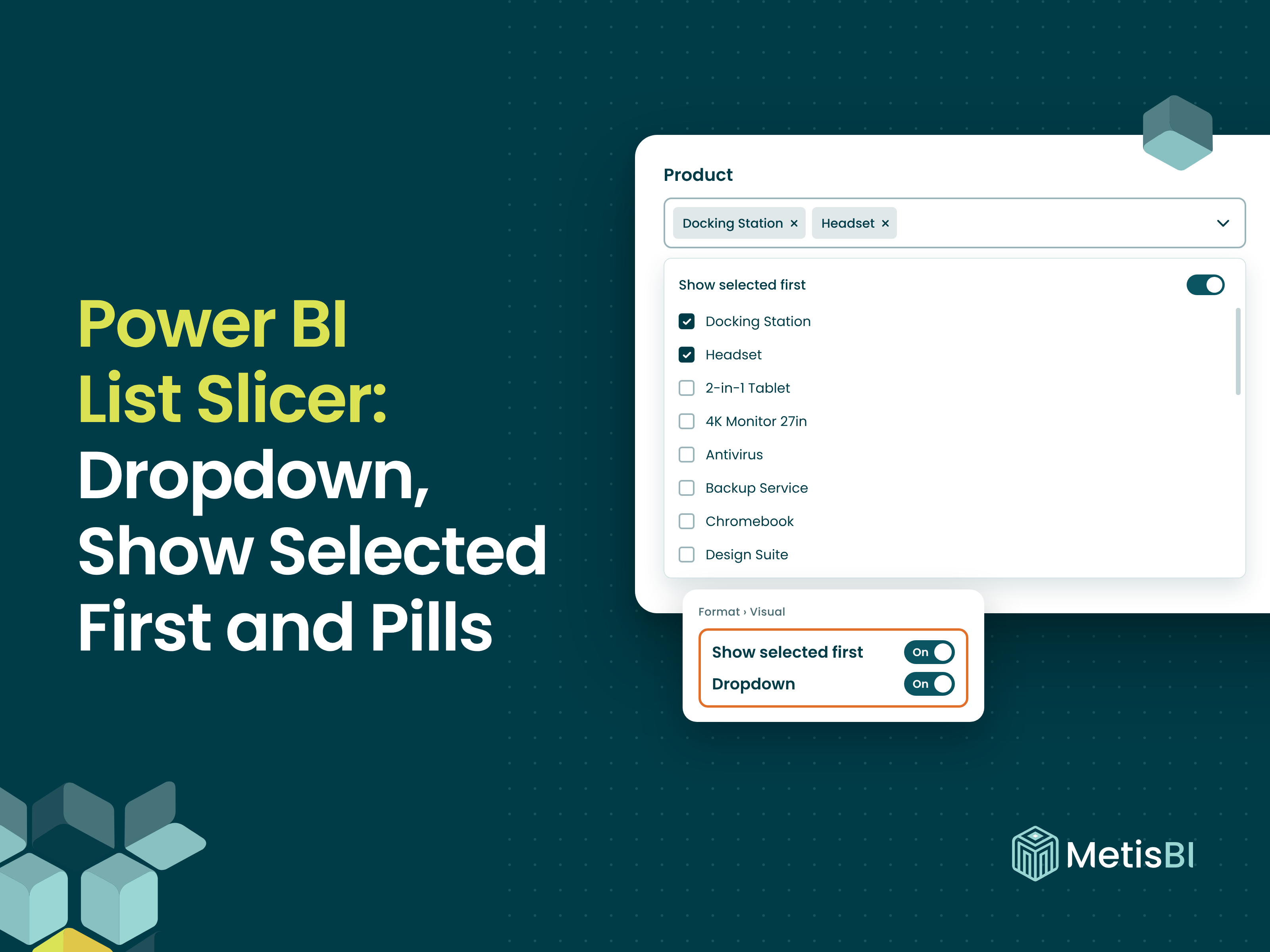


It’s here, finally. The List slicer can now be a dropdown, with far more you can customise. For me, that means no more building workarounds to fake it. Also, pick a few items in a long slicer list, then try to see what you've actually picked. Until I turned on the Show selected first switch in the drawer, ticked products stayed in their alphabetical place in the list.
So, the October 2026 update added a dropdown option and Show selected first to the List Slicer, also in preview.
Definition: the List slicer's Dropdown option turns the list into a compact box that opens a drawer of items, with each selection shown as a pill. Show selected first toggle gives the person using the report a switch that moves their ticked items above the rest of the drawer.
Key takeaways, all from my own testing:
- 2 switches, not 1: Show selected first in the Format pane adds a switch inside the dropdown for the reader, and that switch starts off.
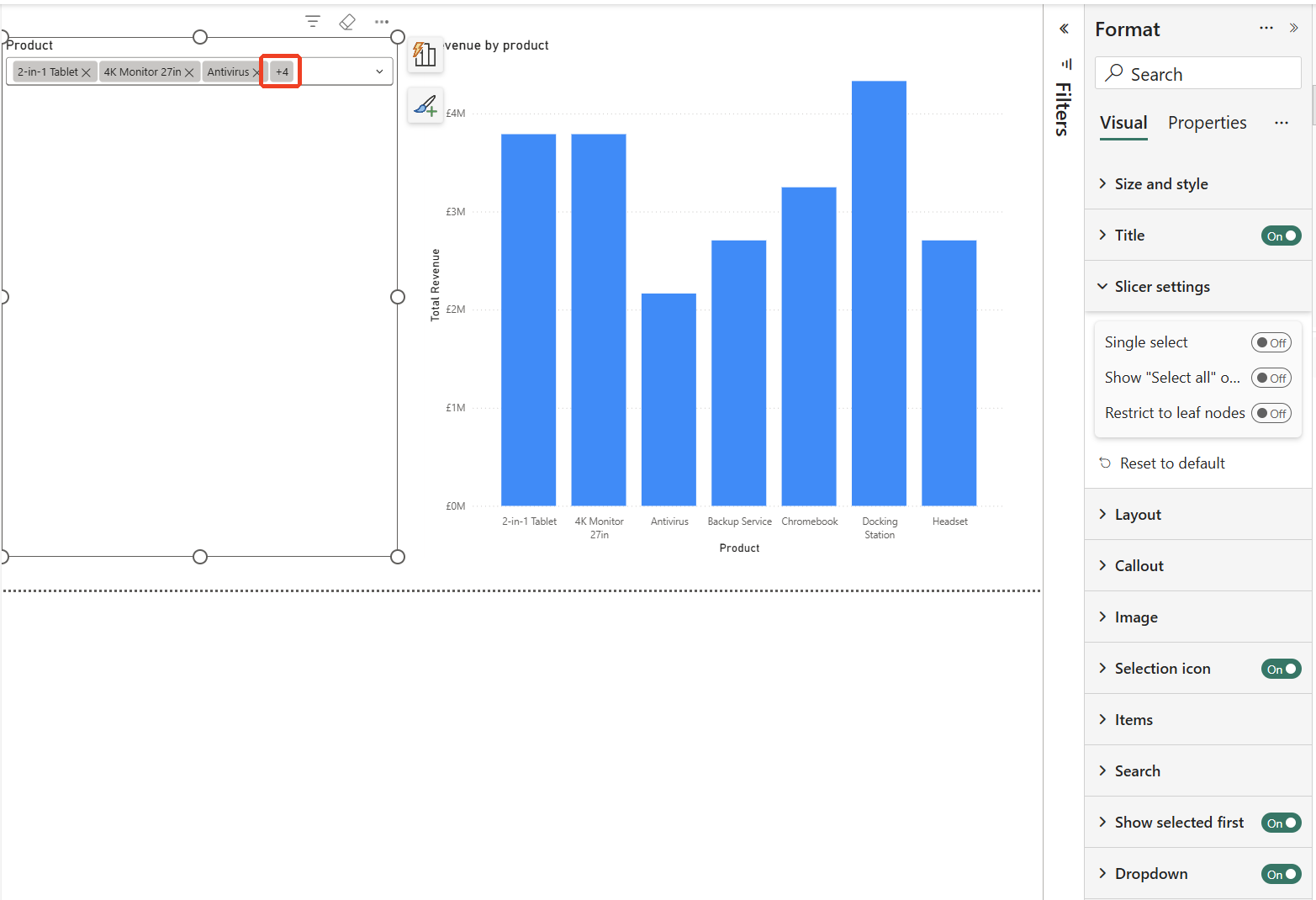
- Pills show the selection: each item becomes a pill with an x, and a count pill such as "+4" covers what doesn't fit.
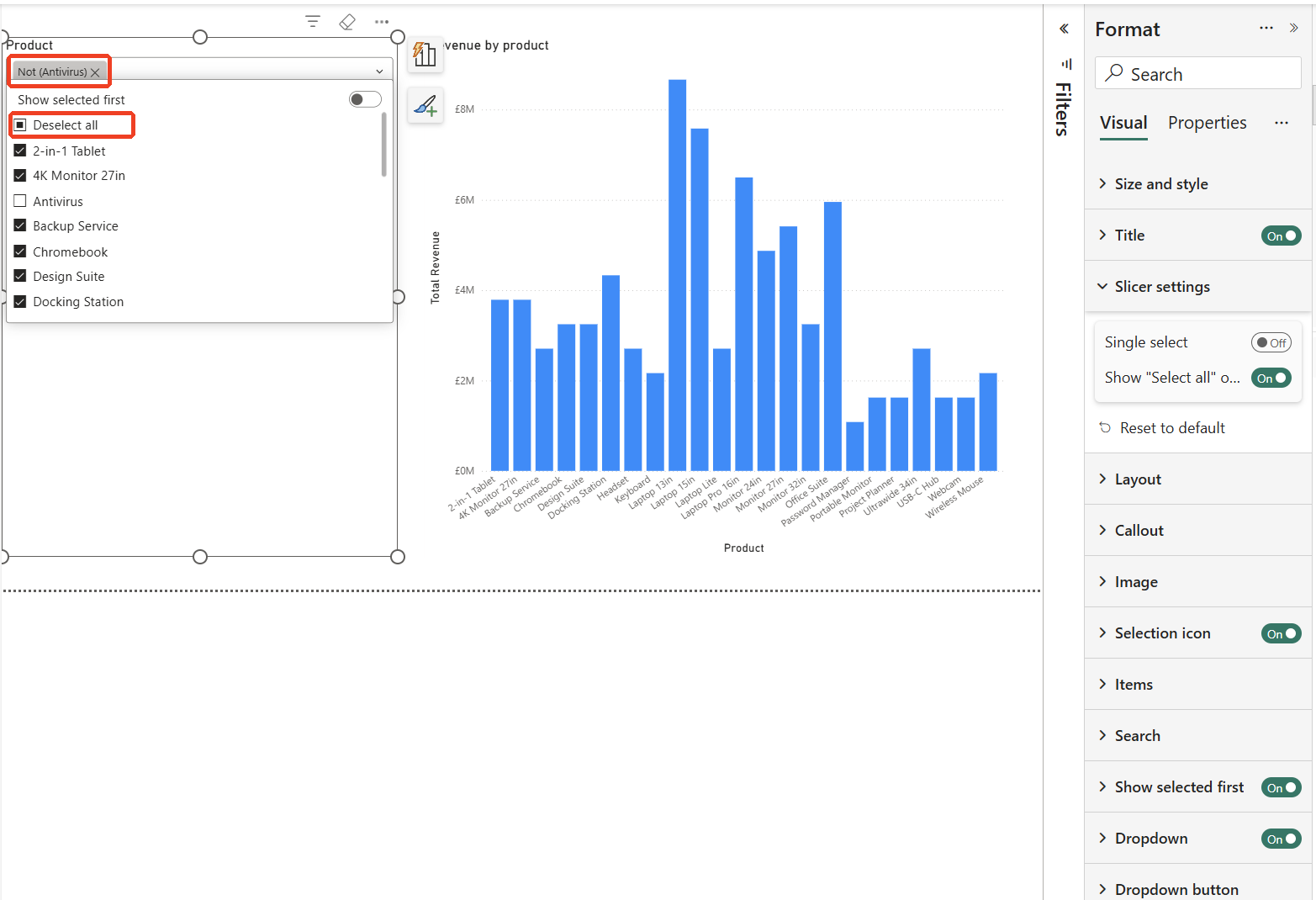
- Select all, then clear: the box shows a "Not (item)" pill for anything you clear.
Turning the dropdown on
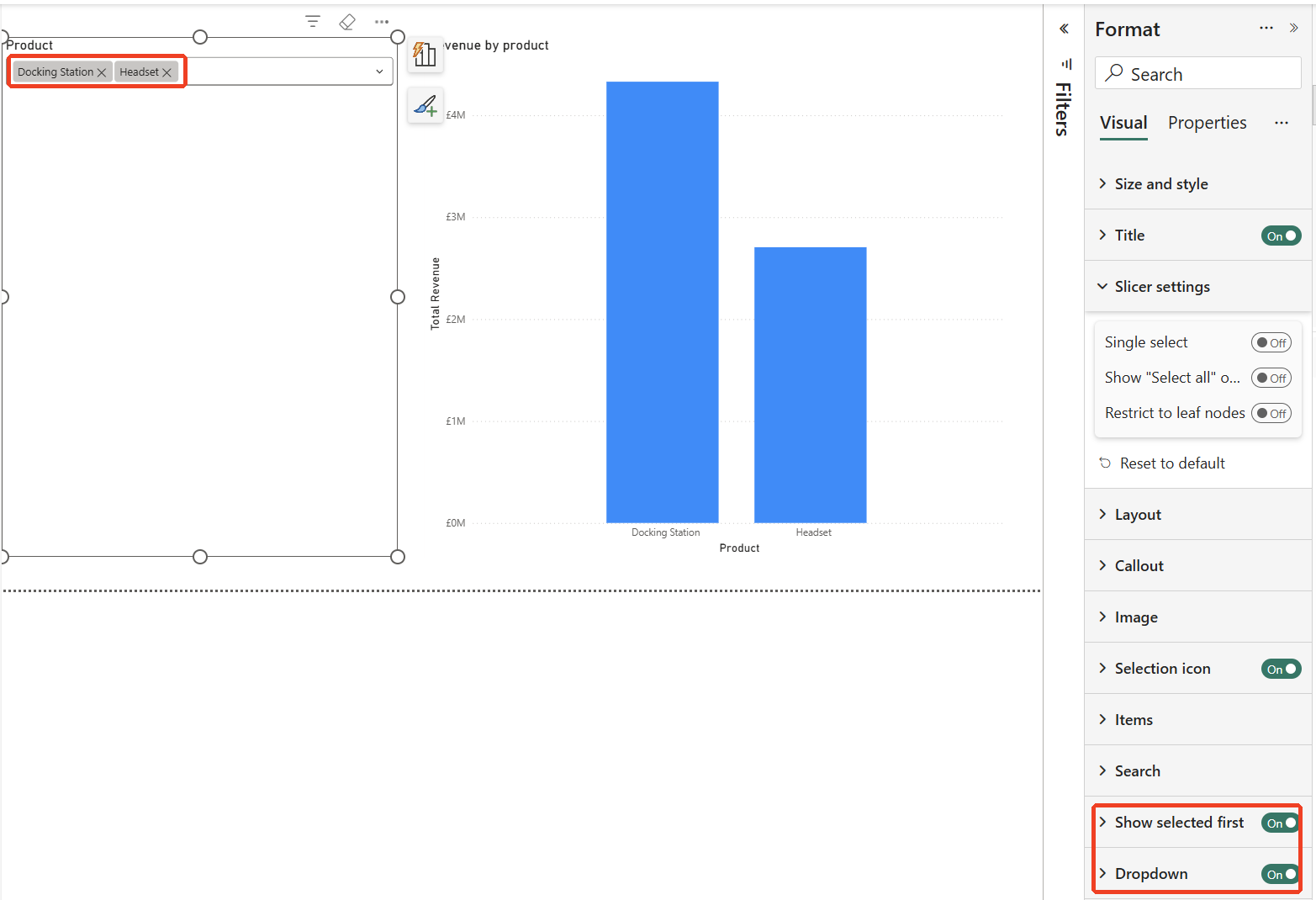
Add a List slicer (it shows as "List slicer (Preview)" in the Visualizations pane) and open the Format pane. The Dropdown and Show selected first each had their own card with an on and off switch, and Dropdown button, Selection pills and Selection box stayed greyed out until Dropdown was on.
With Dropdown on, the slicer collapsed to a single box ("Select Product" is displayed in my below example, until something is picked), and clicking it opened a drawer with the items. Single select was on by default, with round selectors, so I turned it off under Slicer settings to tick several products with checkboxes.
Show selected first is really 2 switches
This is the bit that caught me out. Turning on Show selected first in the Format pane didn't move anything. What it did was add a "Show selected first" toggle at the top of the drawer of the dropdown, for the person using the report, and that switch was off. Only when I turned it on did the selected products jump to the top of the list.
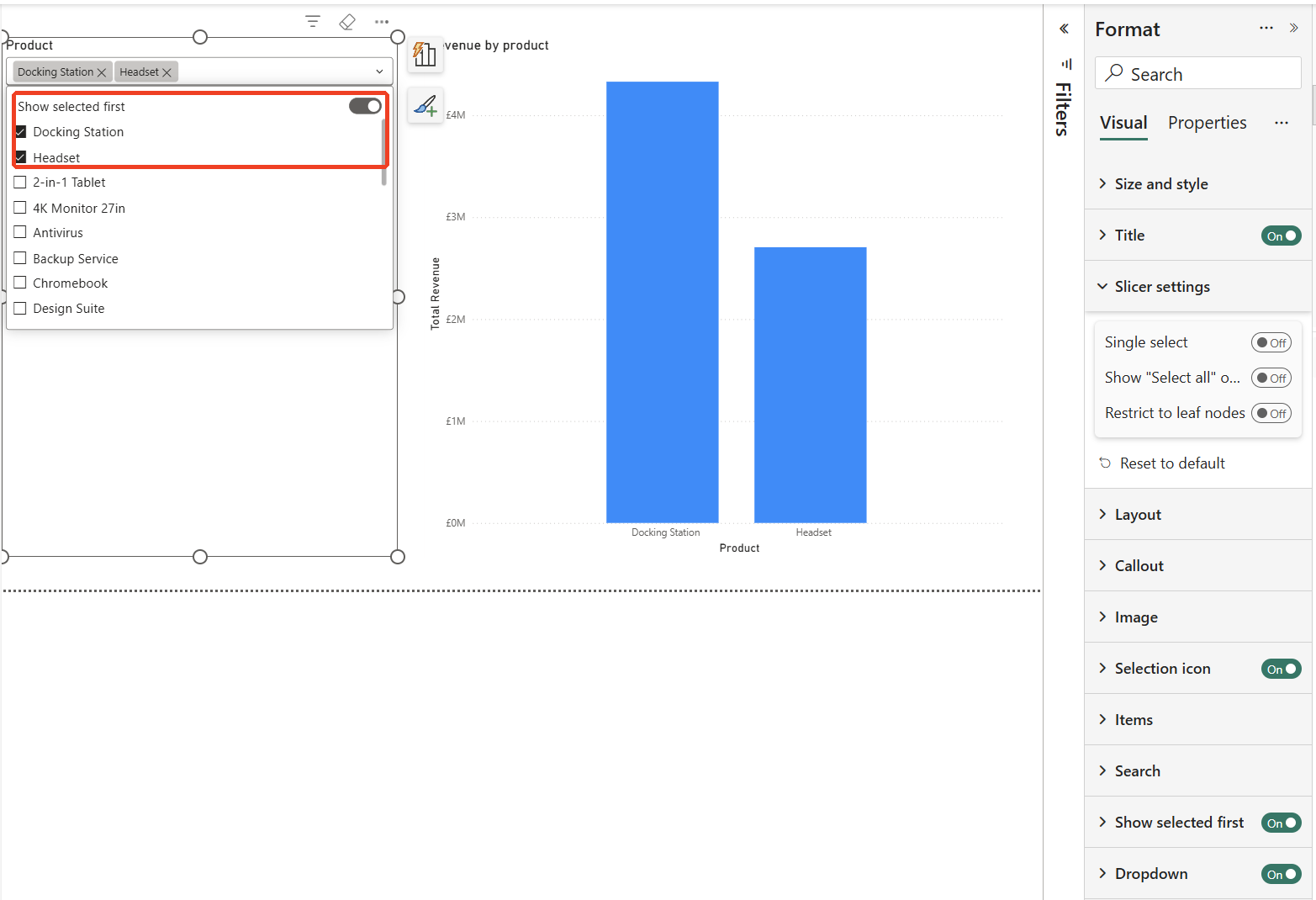
So the Format pane switch on its own doesn't pin anything. The switch in the drawer does and it started off.
Pills, Select all and "Not" pills
In the box, every pick gets its own pill with an x. In my test, with 7 products selected, the box showed 3 pills and a "+4" count pill at the end, and the chart filtered to those 7 products. How many pills fit depends on how wide the slicer is and the values selected.
Select all needs one more setting on top of that which we always had. Turning on Show "Select all" option under Slicer settings added a Select all row. After Select all, the box read "All" and the row changed to "Deselect all". Clearing Antivirus from below example then produced a "Not (Antivirus)" pill, and Antivirus dropped out of the chart. I really liked this addition of showing which are not selected from the total list of values.
The gotchas
What I found in testing
- The reader switch starts off: Show selected first in the Format pane only adds the switch in the drawer.
- Single select is the default: checkboxes and Select all need Single select off and Show "Select all" option on.
Our view
- Use Select all and clear for exclusions: if the aim is "everything except these", Select all and clear keeps new values in after a refresh, which a hand-picked list won't.
- Point people to the drawer switch: it started off in my test, so if pinning matters, mention it in the report's help text.
How we use it at Metis BI
Slicers are often the first thing people touch on a page, so how they behave matters more than how they look. When we build reports, we decide what each slicer should default to and how many selections it should allow, on purpose. If your filters confuse people more than they help, our Power BI report development services cover that design work.
Summary
The List slicer's dropdown option, in preview since the October 2026 update, turns a long list into a compact box with pills for each selection, a count pill for overflow and "Not" pills after Select all. In my test, Show selected first needed 2 switches: one in the Format pane and one inside the drawer, which starts off. Turn off Single select for checkboxes, and turn on Show "Select all" option if you want Select all.